
Are you concerned about feeding your pet when you’re away from home? This DIY Arduino Automatic Pet Feeder is the perfect solution for pet owners who want to ensure their pets are fed on schedule. In this project, you’ll learn how to build a programmable Arduino Automatic Pet Feeder that dispenses food at specified times using an Arduino, a Servo Motor, RTC Module, Keypad and a few other components with the help of Arduino programming language.
To make this project more practical, professional and product-ready, we have also completed the full product design and development of a custom enclosure. This includes 3D design and modeling, 3D printing, and complete hardware assembly. Our professionally designed 3D-printed body gives the feeder a clean, durable, and modern look — making it suitable for everyday home use, not just for prototyping. The enclosure provides safe food storage, smooth dispensing, easy refilling, and secure mounting for all components.
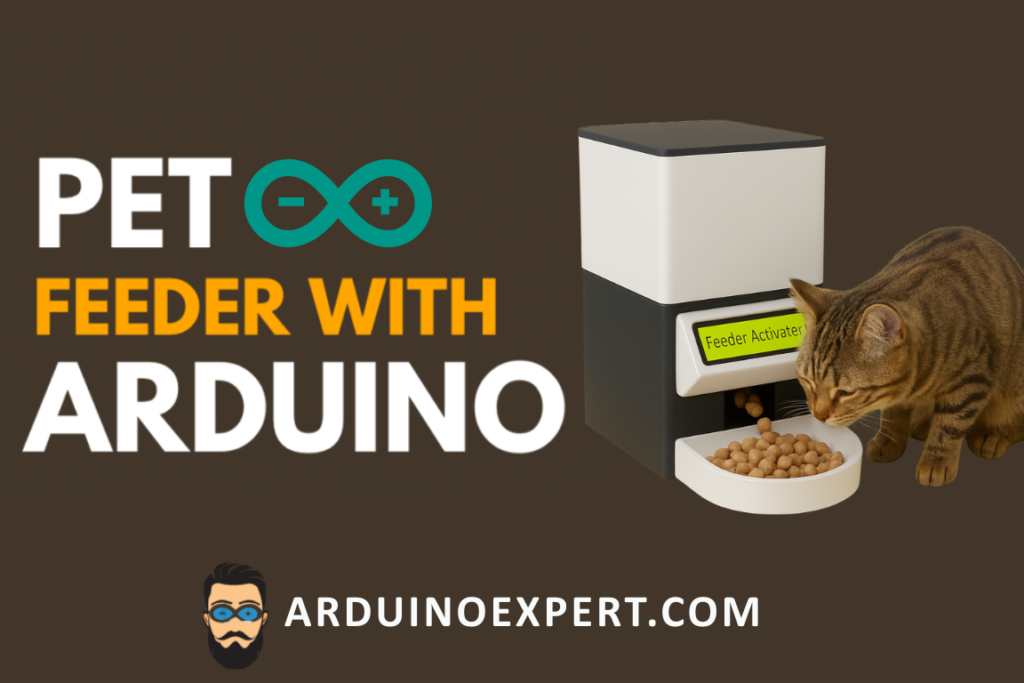
We are currently working on a new and upgraded pet feeder design as well. This upcoming version will feature an improved enclosure and enhanced functionality, allowing users to select the design that best fits their needs. Whether you prefer the current 3D-printed model or the next-generation design, we offer custom building options and can develop the entire unit according to your requirements.
With this combination of smart automation, professional 3D printing, and high-quality product development, you now have a reliable, modern, and practical solution to ensure your pet is fed on time — even when you’re away..
Benefits of Using an Arduino Automatic Pet Feeder
Automating your pet’s feeding schedule with an Arduino Automatic Pet Feeder has several advantages:
- Consistency: Ensures your pet gets fed at the same time every day.
- Convenience: Eliminates the need for manual feeding, especially when you’re away from home.
- Customization: Easily adjustable feeding times to suit your pet’s needs.
Arduino Automatic Pet Feeder Introduction Video
Project Update — July 2026: The Arduino code for this automatic pet feeder has been updated to improve reliability and power-loss recovery. The latest version uses Adafruit RTClib, stores the feeding schedule safely in EEPROM, prevents duplicate daily feeding, supports a configurable missed-feeding recovery period and provides improved RTC, keypad and servo error handling.
Project Overview
This Arduino Automatic Pet Feeder uses an Arduino Uno to control a servo-operated food dispensing mechanism. A 4×4 matrix keypad allows the user to program one automatic feeding time per day, while a 16×2 I2C LCD displays the current time and the saved feeding time.
The DS3231 real-time clock maintains accurate date and time information, and the programmed feeding schedule is stored in the Arduino’s EEPROM. This allows the feeding time to remain saved after the system is restarted or temporarily loses power.
At the selected feeding time, the Arduino records the feeding event and operates the servo to release food. The code also includes protection against duplicate feeding, invalid keypad entries, RTC connection problems and incomplete EEPROM updates.
Key Features
- One programmable automatic feeding time per day
- Feeding-time entry through a 4×4 matrix keypad
- Current time and saved feeding time shown on the LCD
- Accurate DS3231 RTC-based scheduling
- Feeding schedule retained after restart
- Duplicate daily feeding protection
- Configurable missed-feeding recovery window
- Improved keypad validation and timeout handling
- RTC disconnection and invalid-time detection
- Optional servo detachment to reduce idle noise and current consumption
- External 5V servo power supply for more stable operation
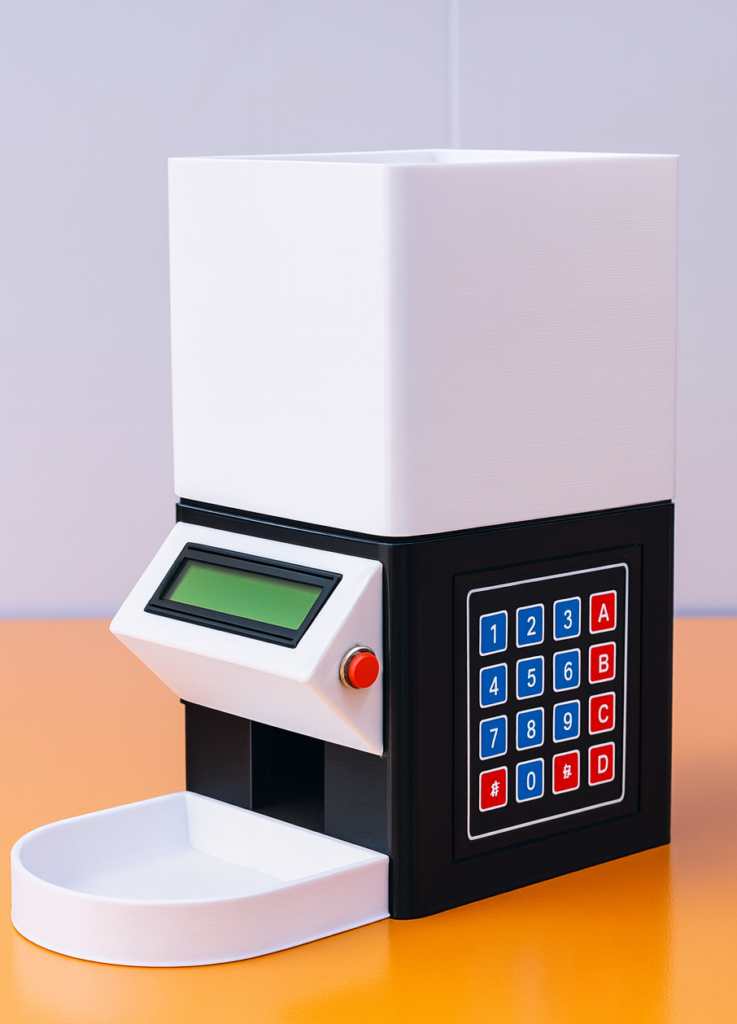
Components Needed for the Arduino Automatic Pet Feeder
To build your Arduino Automatic Pet Feeder, you’ll need the following components:
- Arduino Uno: The core of your Arduino Automatic Pet Feeder project.
- 4×4 Matrix Keypad: For setting feeding times on your Arduino Automatic Pet Feeder.
- 16×2 I2C LCD: Displays the current time, saved daily feeding time, settings messages and system error information.
- DS3231 RTC Module: Maintains accurate date and time information for automatic daily feeding. Its backup battery keeps the clock running when the main feeder power is disconnected.
- Servo Motor: Controls the food dispenser mechanism.
- Push Button: Used to set feeding times.
- Connecting Wires: For making electrical connections between components.
- Power Supply or Battery Use a regulated 5V supply for the servo motor. Connect the external power-supply ground to Arduino GND so that the Arduino and servo share a common ground. The Arduino can be powered through a suitable regulated USB supply.
- Breadboard (Optional): For assembling your Arduino Automatic Pet Feeder.
3D Design & 3D Printed Enclosure (Our Custom-Built Pet Feeder Body)
Building an automatic pet feeder is not just about electronics — a strong, durable, and user-friendly enclosure is equally important. To make this project more practical, we have fully designed, modeled, and 3D-printed a complete pet feeder body for real-world use.
Below is a detailed overview of how we designed the enclosure, its features, and how you can get one built for your own project.
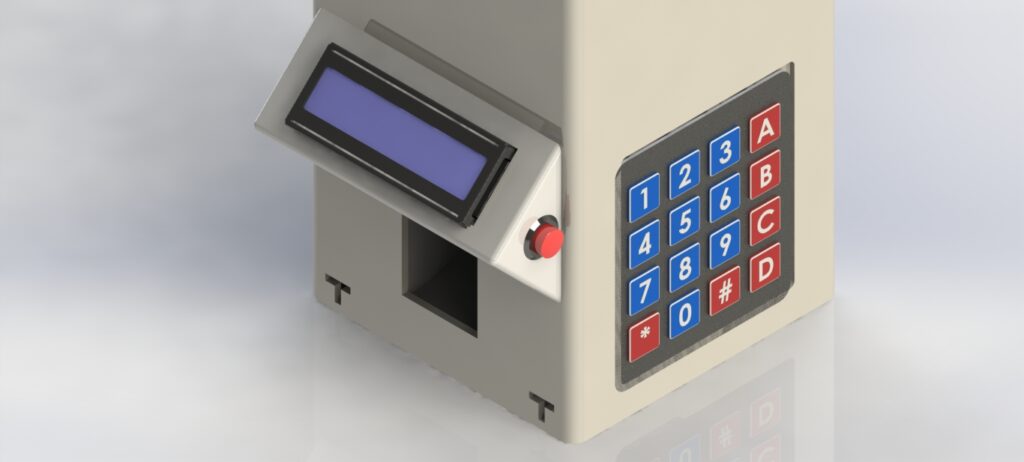
3D Design and Modeling (CAD) of Pet Feeder Body
Our enclosure is professionally modeled in CAD with:
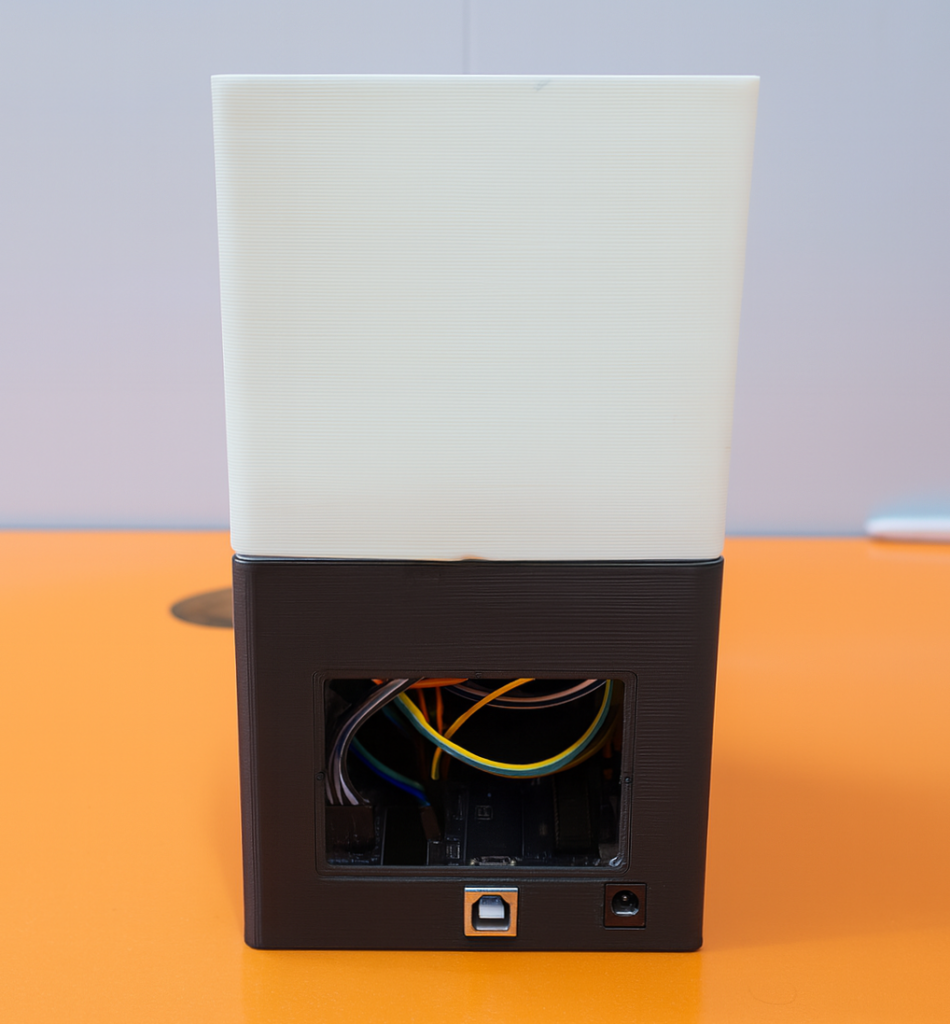
- Perfect fitting for Arduino, RTC, servo, LCD, keypad, and wiring
- Easy refilling lid and accessible electronics area
- Clean, modern, compact design
- Smooth, pet-safe edges
The goal is to make the feeder look like a commercial device.
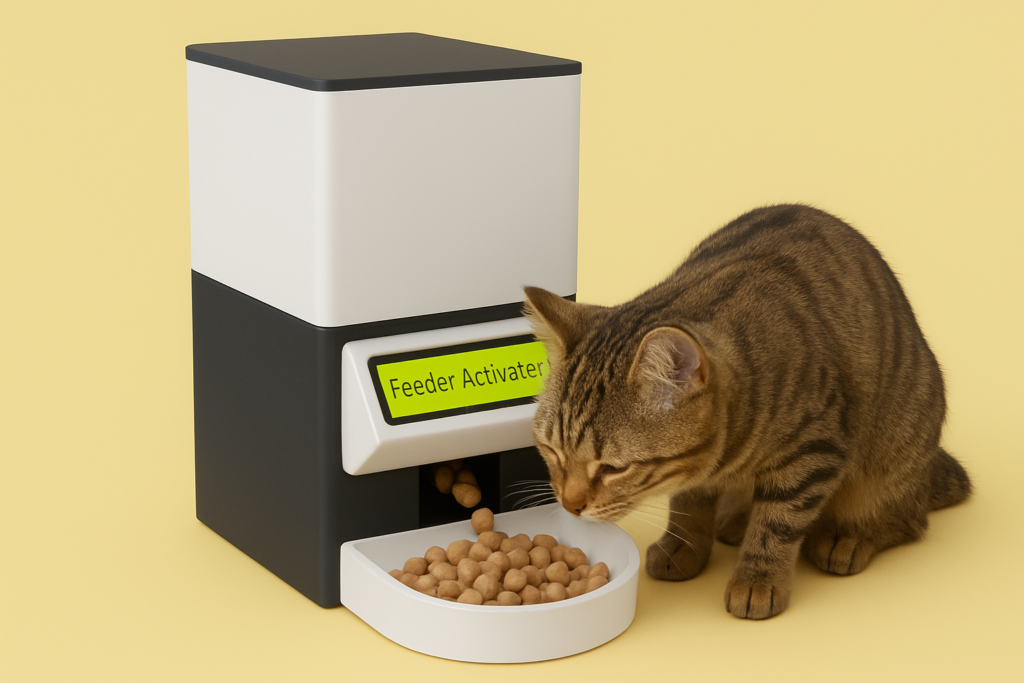
Below you can see the 3D Rendered images of our 3D Design of Pet Feeder.
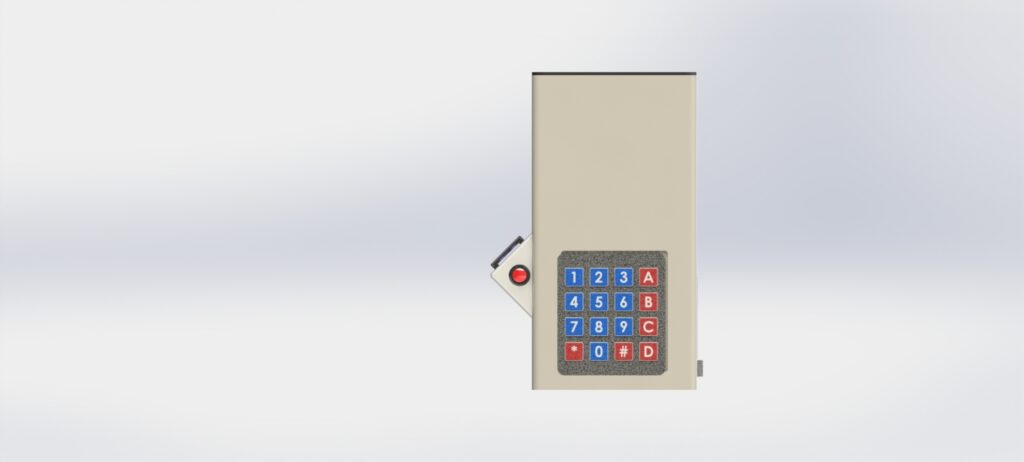
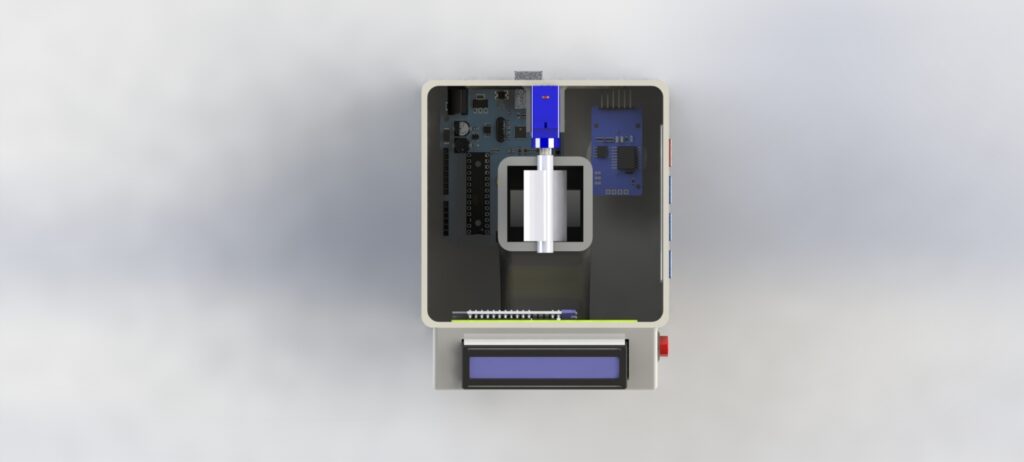
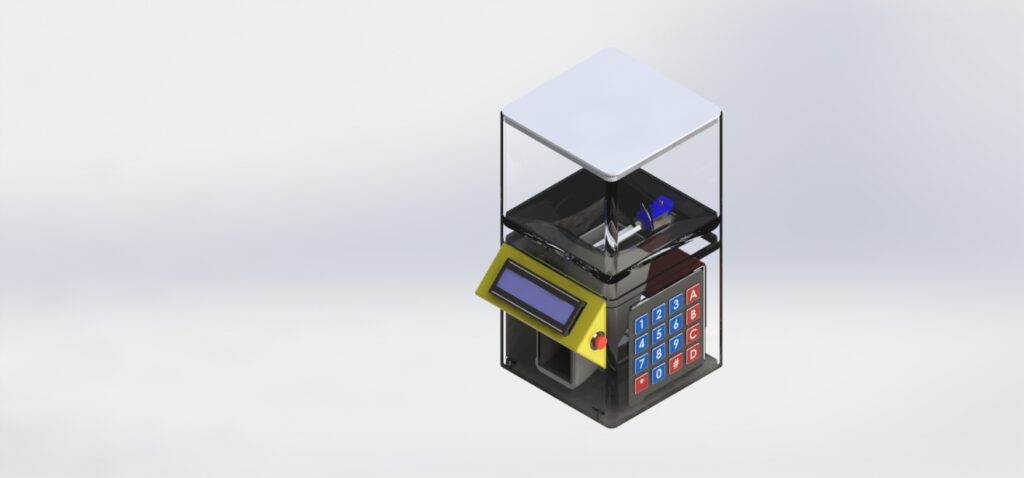
Want to build the 3D-printed enclosure for this project?
The STL files for this automatic pet feeder are available as a digital download from our Etsy shop. This file package is for the printable enclosure only. Electronics, Arduino board, source code, circuit parts and physical printed parts are not included in the STL-only listing.
3D Printing of Pet Feeder Body
The enclosure is printed using PLA/ABS for strength and durability.
We use:
- Thick, strong walls
- Food-safe inner surfaces
- Reinforced dispensing chamber
- Stable base to prevent tipping
You can easily wipe or clean the inside as needed.
NoteWe can also make custom enclosures based on your requirements.
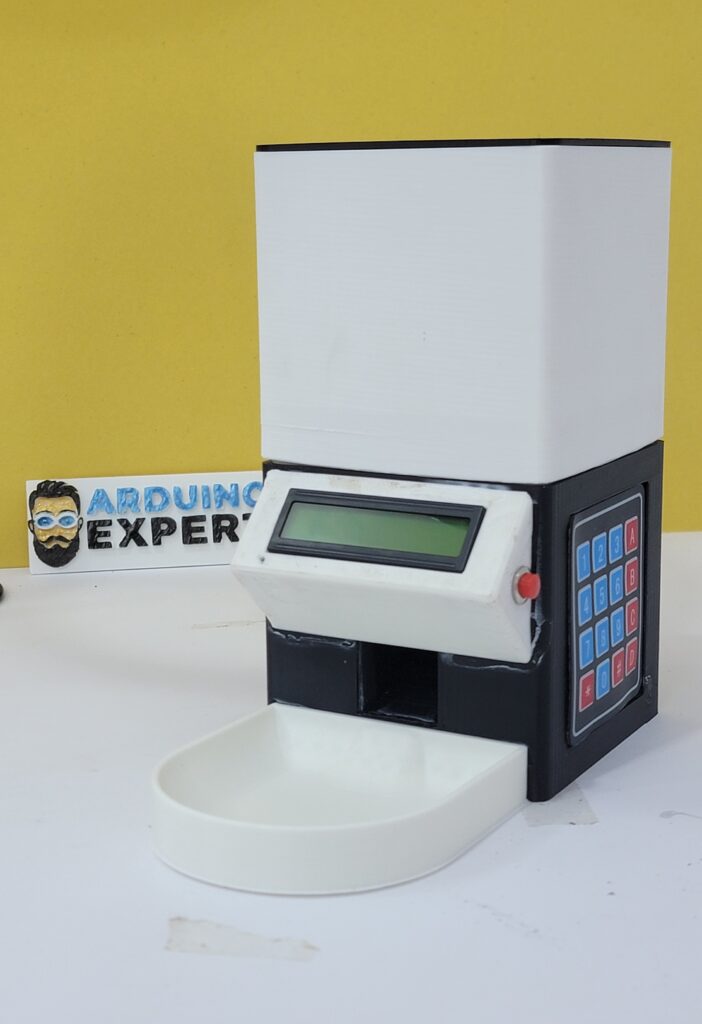
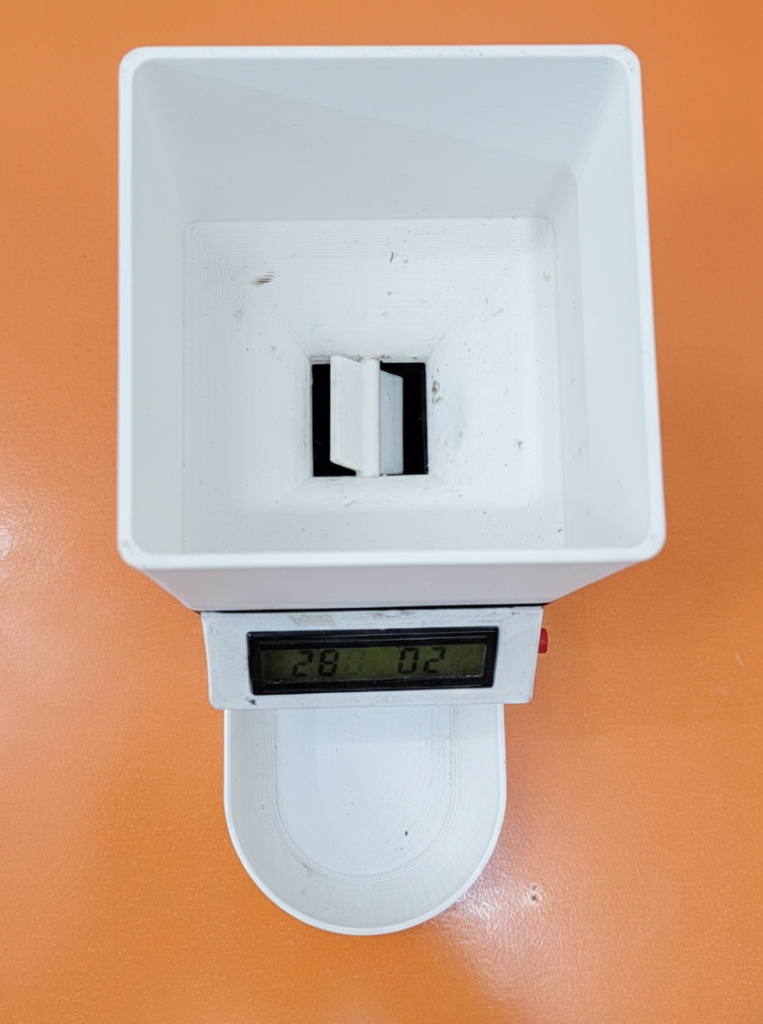
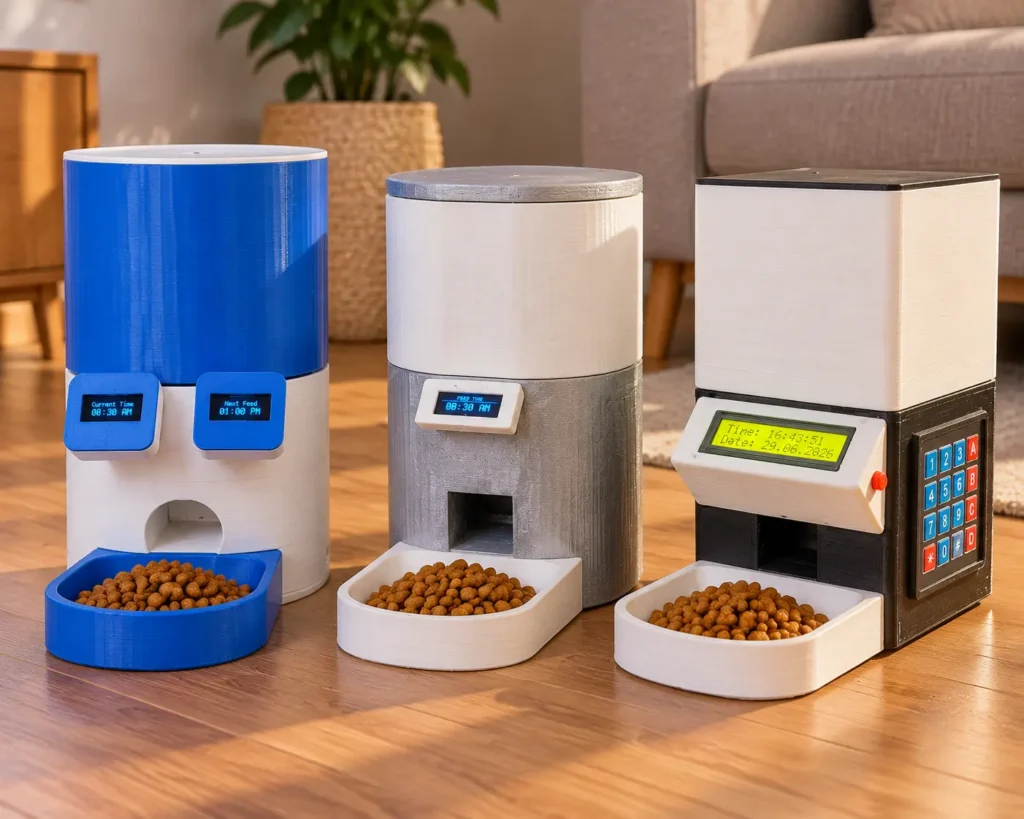
Three Automatic Pet Feeder Versions Developed by Arduino Expert
We have now developed three separate automatic pet feeder designs for different control requirements. more pet feeder with different features will also come soon.
Arduino Offline Automatic Pet Feeder
The project explained on this page uses an Arduino Uno, 4×4 keypad, 16×2 LCD and DS3231 RTC. It is designed for simple standalone operation without Bluetooth, Wi-Fi, a mobile application or an internet connection.
The feeding time is programmed directly from the keypad, making this version suitable for users who prefer a straightforward offline system.
ESP32 Smart Bluetooth Pet Feeder
For users who prefer smartphone control, we have also developed a separate Smart Bluetooth Pet Feeder using an ESP32, DS3231 RTC, OLED display and a dedicated Android application.
The ESP32 version provides:
- Bluetooth control through a custom mobile application
- Manual Feed Now operation
- Multiple daily feeding schedules
- Adjustable portion settings
- Feeding statistics and history
- Mobile RTC time adjustment
- OLED status and feeding animation
- Rechargeable battery-powered operation
- Local operation without Wi-Fi or cloud services
- A completely new 3D-designed enclosure
Learn more in our Smart Bluetooth Pet Feeder with Custom App Control and OLED using ESP32.
Both feeders are separate product designs. The Arduino version focuses on simple offline keypad control, while the ESP32 version provides a more advanced smartphone-controlled interface.
ESP32 WiFi Automatic Pet Feeder with Custom App
For users looking for WiFi-based smartphone control, we have also developed a new ESP32 WiFi Automatic Pet Feeder with a Custom Android Application. This advanced version supports communication through a local WiFi network or directly through the ESP32 Access Point (AP), allowing users to control feeding without relying on an internet connection.
The WiFi pet feeder features programmable feeding schedules, manual feeding, adjustable portion settings, and dual animated OLED displays. One OLED shows the current time, while the other displays the next scheduled feeding time. The system also includes a DS3231 RTC, SG90 servo-controlled dispensing mechanism, IP5306 USB-C rechargeable power system, and a completely redesigned blue-and-white 3D-printed enclosure.
Explore Our ESP32 WiFi Automatic Pet Feeder with Custom Android App
Arduino Expert now offers three separate automatic pet feeder designs: an Arduino Uno feeder with keypad control, an ESP32 Bluetooth feeder with mobile app control, and an ESP32 WiFi feeder with local network and hotspot connectivity. Each project demonstrates a different approach to embedded control, wireless communication, and automated pet feeding.
Circuit Diagram of Arduino Automatic Pet Feeder
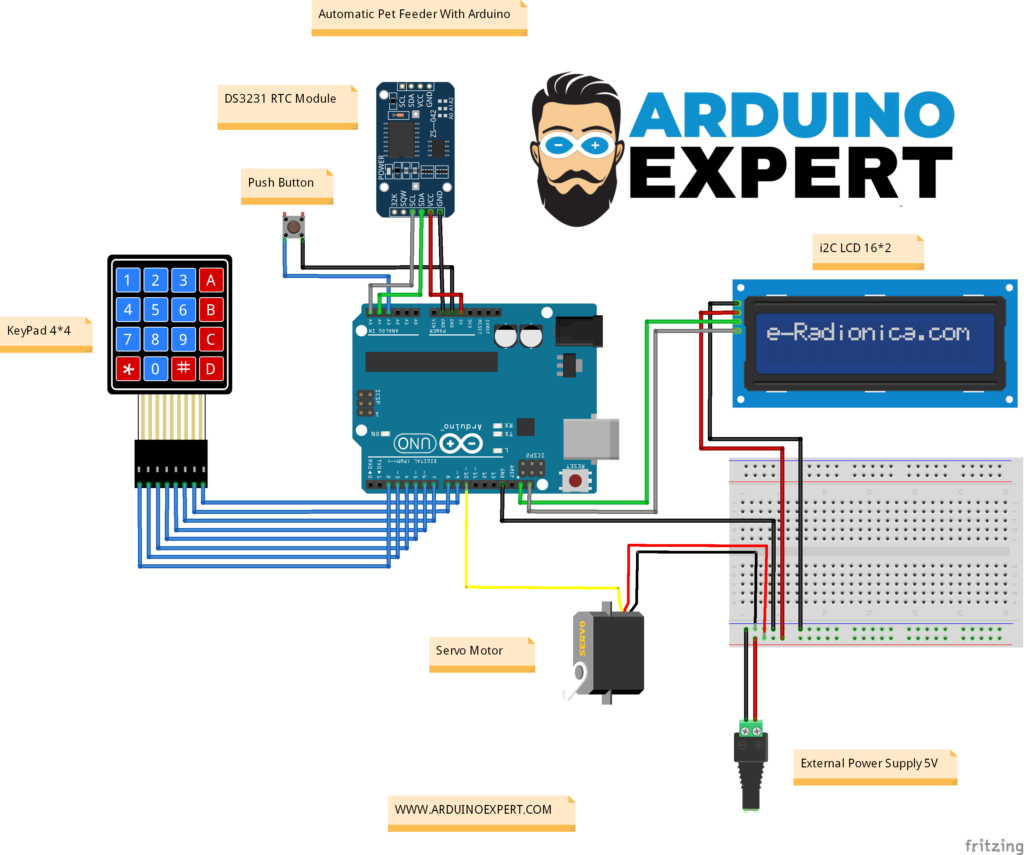
Main Wiring Connections
- Servo signal wire → Arduino pin 10
- Servo positive wire → External regulated 5V supply
- Servo ground wire → External supply ground
- External supply ground → Arduino GND
- Push button → Arduino pin A3 and GND
- Keypad row pins → Arduino pins 2, 3, 4 and 5
- Keypad column pins → Arduino pins 6, 7, 8 and 9
- LCD SDA → Arduino A4
- LCD SCL → Arduino A5
- DS3231 SDA → Arduino A4/SDA Pin
- DS3231 SCL → Arduino A5/SCL Pin
The LCD and DS3231 share the Arduino I2C connection.
Important Power-Supply Note
The servo motor is powered from a separate regulated 5V supply rather than directly from the Arduino 5V pin. Connect the negative terminal of the external servo supply to Arduino GND so that the Arduino, RTC, LCD and servo share a common electrical ground.
A capacitor between 470 µF and 1000 µF may also be connected across the servo power terminals to help reduce voltage drops during servo movement.
Step-by-Step Guide for Your Arduino Automatic Pet Feeder
Step 1: Install the Required Arduino Libraries
Before uploading the code, open the Arduino IDE and install the required libraries:
- Open Sketch > Include Library > Manage Libraries.
- Search for and install:
- RTClib by Adafruit — communicates with the DS3231 RTC module
- Adafruit BusIO — required dependency for Adafruit RTClib
- Keypad by Mark Stanley and Alexander Brevig — reads the 4×4 matrix keypad
- LiquidCrystal I2C — use a version that supports
lcd.init()
The following libraries are included with the Arduino IDE and normally do not require separate installation:
- Servo
- EEPROM
- Wire
Do not install a different generic DS3231 library for this code. The latest sketch is written specifically for RTClib by Adafruit.
Step 2: Assemble the Hardware for Your Arduino Automatic Pet Feeder
Follow these steps to set up the hardware for your Arduino Automatic Pet Feeder:
- Connect the Servo Motor:
- Attach the servo motor’s signal wire to pin 10 on the Arduino.
- Set Up the Keypad:
- Connect the 4×4 keypad’s rows and columns to pins 2 through 9 on the Arduino.
- Connect the LCD:
- Connect the 16×2 I2C LCD to the Arduino using the I2C interface (SDA to A4, SCL to A5).
- Connect the RTC Module:
- Connect the DS3231 SDA and SCL lines to the same A4 and A5 I2C connections.
- Add the Push Button:
- Connect the push button between Arduino pin A3 and GND.
Do not power a loaded servo motor directly from the Arduino 5V pin, as servo current can cause the Arduino to restart or interfere with the LCD and RTC.
Step 3: Upload the Code for the Arduino Automatic Pet Feeder
Here’s the complete code for your Arduino Automatic Pet Feeder. Copy the following code into the Arduino IDE , select the correct Arduino board and COM port and upload it to your Arduino Uno.
The latest code uses Adafruit RTClib and includes:
- Safe EEPROM storage with two validated settings records
- Automatic migration from earlier EEPROM versions
- One automatic feeding per scheduled date
- Protection against duplicate feeding after a restart
- A configurable 15-minute missed-feeding recovery window
- Feeding checks while the settings menu is open
- RTC disconnection and reconnection handling
- Invalid RTC time and clock rollback protection
- Keypad timeout, editing, cancellation and input validation
- Optional servo detachment while the feeder is idle
- No dynamic Arduino
Stringobjects
#include <Wire.h>
#include <LiquidCrystal_I2C.h>
#include <RTClib.h>
#include <Servo.h>
#include <Keypad.h>
#include <EEPROM.h>
#include <stddef.h>

// ===================== RTC SETTING MODE =====================
// RTC_SET_NEVER:      Never change the RTC automatically.
// RTC_SET_IF_INVALID: Set it from the computer's compile time only when the
//                     DS3231 reports that it lost power or has invalid data.
// RTC_SET_ALWAYS:     Set it from compile time on every restart. Use only for
//                     one upload, then change back to RTC_SET_IF_INVALID.
#define RTC_SET_NEVER       0
#define RTC_SET_IF_INVALID  1
#define RTC_SET_ALWAYS      2
#define RTC_SET_MODE        RTC_SET_IF_INVALID
// ============================================================

// ===================== USER SETTINGS =====================
const uint8_t LCD_I2C_ADDRESS = 0x27;

const uint8_t SERVO_PIN  = 10;
const uint8_t BUTTON_PIN = A3;

const uint8_t SERVO_CLOSED_ANGLE = 0;
const uint8_t SERVO_OPEN_ANGLE   = 100;

// Set to 0 if the mechanism needs continuous servo holding torque.
#define DETACH_SERVO_WHEN_IDLE 1

// Allows feeding shortly after the scheduled minute, such as after a brief
// power interruption. Set to 0 for exact-minute-only operation.
// The calculation safely supports a schedule close to midnight.
const uint16_t MISSED_FEEDING_GRACE_MINUTES = 15;
// =========================================================

// ===================== TIMING SETTINGS =====================
const unsigned long RTC_POLL_INTERVAL_MS  = 1000UL;
const unsigned long BUTTON_DEBOUNCE_MS    = 50UL;
const unsigned long SETTING_TIMEOUT_MS    = 30000UL;
const unsigned long SERVO_ATTACH_DELAY_MS = 150UL;
const unsigned long FEED_OPEN_TIME_MS     = 1000UL;
const unsigned long SERVO_CLOSE_DELAY_MS  = 500UL;
// ===========================================================

static_assert(SERVO_CLOSED_ANGLE <= 180, "SERVO_CLOSED_ANGLE must be 0-180");
static_assert(SERVO_OPEN_ANGLE <= 180, "SERVO_OPEN_ANGLE must be 0-180");
static_assert(MISSED_FEEDING_GRACE_MINUTES <= 1439,
              "Grace period must be less than 24 hours");

// ===================== KEYPAD SETUP =====================
const byte ROWS = 4;
const byte COLS = 4;

char keys[ROWS][COLS] = {
  {'1', '2', '3', 'A'},
  {'4', '5', '6', 'B'},
  {'7', '8', '9', 'C'},
  {'*', '0', '#', 'D'}
};

byte rowPins[ROWS] = {2, 3, 4, 5};
byte colPins[COLS] = {6, 7, 8, 9};

Keypad keypad = Keypad(makeKeymap(keys), rowPins, colPins, ROWS, COLS);
// =========================================================

// ===================== HARDWARE OBJECTS =====================
RTC_DS3231 rtc;
LiquidCrystal_I2C lcd(LCD_I2C_ADDRESS, 16, 2);
Servo feederServo;
// ============================================================

// ===================== EEPROM SETTINGS =====================
// Version 3 stores two independently validated copies. A new copy is fully
// written and committed before the old copy is abandoned. If power fails
// during an EEPROM update, the previous valid copy remains available.
const uint16_t SETTINGS_MAGIC = 0xA5C3;
const uint8_t SETTINGS_VERSION = 3;
const uint8_t SETTINGS_COMMIT_MARKER = 0x5A;
const int8_t NO_ACTIVE_SLOT = -1;
const int EEPROM_SLOT_A_ADDRESS = 32;

struct __attribute__((packed)) FeederSettings {
  uint16_t magic;
  uint8_t version;
  uint16_t sequence;
  uint8_t feedHour;
  uint8_t feedMinute;
  uint8_t feedingTimeSet;
  uint8_t lastFedDay;
  uint8_t lastFedMonth;
  uint16_t lastFedYear;
  uint8_t checksum;
  uint8_t commitMarker;
};

const int EEPROM_SLOT_B_ADDRESS =
  EEPROM_SLOT_A_ADDRESS + static_cast<int>(sizeof(FeederSettings));

// Version 2 format used by the preceding improved sketch.
struct __attribute__((packed)) LegacySettingsV2 {
  uint16_t magic;
  uint8_t version;
  uint8_t feedHour;
  uint8_t feedMinute;
  uint8_t feedingTimeSet;
  uint8_t lastFedDay;
  uint8_t lastFedMonth;
  uint16_t lastFedYear;
  uint8_t checksum;
};

// Earlier marker-based format.
struct __attribute__((packed)) LegacySettingsV1 {
  uint8_t marker;
  uint8_t feedHour;
  uint8_t feedMinute;
  uint8_t feedingTimeSet;
  uint8_t lastFedDay;
  uint8_t lastFedMonth;
  int16_t lastFedYear;
};

FeederSettings settings;
int8_t activeSettingsSlot = NO_ACTIVE_SLOT;
// ===========================================================

// ===================== RTC STATE =====================
struct RtcNow {
  uint8_t hour;
  uint8_t minute;
  uint8_t second;
  uint8_t day;
  uint8_t month;
  uint16_t year;
};

struct CalendarDate {
  uint8_t day;
  uint8_t month;
  uint16_t year;
};

enum RtcStatus : uint8_t {
  RTC_NOT_FOUND,
  RTC_TIME_INVALID,
  RTC_READY
};

RtcNow currentRtc = {0, 0, 0, 0, 0, 0};
RtcStatus rtcStatus = RTC_NOT_FOUND;
bool rtcWasPresent = false;
bool forceRtcPoll = true;
bool clockRollbackDetected = false;
unsigned long lastRtcPollMs = 0;
// =====================================================

// ===================== FUNCTION DECLARATIONS =====================
void initializeRtc();
void setRtcFromCompileTime();
bool isI2cDevicePresent(uint8_t address);
bool readRtcSnapshot(RtcNow &now);
bool isValidRtcDateTime(const RtcNow &now);
uint8_t daysInMonth(uint8_t month, uint16_t year);
bool serviceRtc(bool updateDisplay);
bool feedingRecordIsInFuture(const RtcNow &now);
int8_t compareDates(uint16_t yearA, uint8_t monthA, uint8_t dayA,
                    uint16_t yearB, uint8_t monthB, uint8_t dayB);

void initializeServo();
bool feedNow(const RtcNow &now, const CalendarDate &feedingDate);
bool checkFeeding(const RtcNow &now);
bool findFeedingDateInsideWindow(const RtcNow &now,
                                 CalendarDate &feedingDate);
bool getMostRecentScheduledDate(const RtcNow &now,
                                CalendarDate &feedingDate);
bool alreadyFedForDate(const CalendarDate &feedingDate);
bool markFedForDate(const CalendarDate &feedingDate);

void loadSettings();
bool saveSettings();
void setDefaultSettings();
bool settingsAreValid(const FeederSettings &candidate);
uint8_t calculateSettingsChecksum(const FeederSettings &candidate);
uint8_t calculateLegacyV2Checksum(const LegacySettingsV2 &candidate);
uint8_t crc8Update(uint8_t crc, uint8_t data);
bool readSettingsSlot(uint8_t slot, FeederSettings &candidate);
bool writeSettingsSlot(uint8_t slot, const FeederSettings &candidate);
int settingsSlotAddress(uint8_t slot);
bool sequenceIsNewer(uint16_t first, uint16_t second);
bool migrateVersion2Settings();
bool migrateVersion1Settings();

void handleButton();
void setFeedingTime();
void showInputScreen(const int8_t digits[4]);
bool isValidTime(uint8_t hour, uint8_t minute);

void updateMainDisplay();
void printLine(uint8_t row, const char *text);
void showMessage(const char *line1, const char *line2,
                 unsigned long durationMs);
void printTwoDigitsToSerial(uint8_t value);
void writeTwoDigitsToBuffer(char *destination, uint8_t value);
// =================================================================

void setup() {
  Serial.begin(9600);
  Wire.begin();

#if defined(WIRE_HAS_TIMEOUT)
  // Prevent a damaged or disconnected I2C device from locking the sketch.
  Wire.setWireTimeout(25000UL, true);
#endif

  pinMode(BUTTON_PIN, INPUT_PULLUP);

  lcd.init();
  lcd.backlight();
  lcd.clear();

  loadSettings();
  initializeServo();
  initializeRtc();

  if (rtcStatus == RTC_READY) {
    clockRollbackDetected = feedingRecordIsInFuture(currentRtc);
  }

  if (clockRollbackDetected) {
    printLine(0, "Clock moved back");
    printLine(1, "Feeding locked");
  } else if (rtcStatus == RTC_READY) {
    char line[17];

    printLine(0, "Pet Feeder Ready");
    if (settings.feedingTimeSet) {
      snprintf(line, sizeof(line), "Feed %02u:%02u",
               static_cast<unsigned int>(settings.feedHour),
               static_cast<unsigned int>(settings.feedMinute));
      printLine(1, line);
    } else {
      printLine(1, "No time set");
    }
  } else if (rtcStatus == RTC_NOT_FOUND) {
    printLine(0, "RTC not found");
    printLine(1, "Check wiring");
  } else {
    printLine(0, "RTC time invalid");
    printLine(1, "Set clock first");
  }

  delay(1500);
  lcd.clear();
  forceRtcPoll = true;

  Serial.println(F("Pet feeder system ready."));
}

void loop() {
  handleButton();
  serviceRtc(true);
}

// ===================== RTC FUNCTIONS =====================

void initializeRtc() {
#if RTC_SET_MODE != RTC_SET_NEVER && \
    RTC_SET_MODE != RTC_SET_IF_INVALID && \
    RTC_SET_MODE != RTC_SET_ALWAYS
  #error "RTC_SET_MODE must be RTC_SET_NEVER, RTC_SET_IF_INVALID, or RTC_SET_ALWAYS"
#endif

  if (!isI2cDevicePresent(0x68) || !rtc.begin()) {
    rtcStatus = RTC_NOT_FOUND;
    rtcWasPresent = false;
    Serial.println(F("ERROR: DS3231 was not found at I2C address 0x68."));
    return;
  }

  rtcWasPresent = true;

  RtcNow snapshot;
  const bool lostPower = rtc.lostPower();
  const bool valuesOkay = readRtcSnapshot(snapshot);
  const bool rtcInvalid = lostPower || !valuesOkay;

  if (RTC_SET_MODE == RTC_SET_ALWAYS ||
      (RTC_SET_MODE == RTC_SET_IF_INVALID && rtcInvalid)) {
    setRtcFromCompileTime();
  }

  if (!rtc.lostPower() && readRtcSnapshot(currentRtc)) {
    rtcStatus = RTC_READY;
  } else {
    rtcStatus = RTC_TIME_INVALID;
    Serial.println(F("ERROR: RTC date/time is invalid or the RTC lost power."));
  }
}

void setRtcFromCompileTime() {
  const DateTime compileTime(F(__DATE__), F(__TIME__));

  // adjust() writes the full timestamp and clears the DS3231 lost-power flag.
  rtc.adjust(compileTime);

  Serial.print(F("RTC set from compile time: "));
  Serial.print(compileTime.year());
  Serial.print('-');
  printTwoDigitsToSerial(compileTime.month());
  Serial.print('-');
  printTwoDigitsToSerial(compileTime.day());
  Serial.print(' ');
  printTwoDigitsToSerial(compileTime.hour());
  Serial.print(':');
  printTwoDigitsToSerial(compileTime.minute());
  Serial.print(':');
  printTwoDigitsToSerial(compileTime.second());
  Serial.println();
}

bool isI2cDevicePresent(uint8_t address) {
  Wire.beginTransmission(address);
  return Wire.endTransmission() == 0;
}

bool readRtcSnapshot(RtcNow &now) {
  // RTClib returns one DateTime snapshot, avoiding mixed values at rollover.
  const DateTime snapshot = rtc.now();

  now.hour = snapshot.hour();
  now.minute = snapshot.minute();
  now.second = snapshot.second();
  now.day = snapshot.day();
  now.month = snapshot.month();
  now.year = snapshot.year();

  return isValidRtcDateTime(now);
}

bool isValidRtcDateTime(const RtcNow &now) {
  if (now.year < 2000 || now.year > 2099) {
    return false;
  }

  if (now.month < 1 || now.month > 12) {
    return false;
  }

  if (now.day < 1 || now.day > daysInMonth(now.month, now.year)) {
    return false;
  }

  return now.hour <= 23 && now.minute <= 59 && now.second <= 59;
}

uint8_t daysInMonth(uint8_t month, uint16_t year) {
  static const uint8_t monthLengths[] = {
    31, 28, 31, 30, 31, 30,
    31, 31, 30, 31, 30, 31
  };

  if (month == 2) {
    const bool leapYear =
      (year % 4 == 0) && ((year % 100 != 0) || (year % 400 == 0));
    return leapYear ? 29 : 28;
  }

  return monthLengths[month - 1];
}

bool serviceRtc(bool updateDisplay) {
  const unsigned long nowMs = millis();

  if (!forceRtcPoll && (nowMs - lastRtcPollMs < RTC_POLL_INTERVAL_MS)) {
    return false;
  }

  forceRtcPoll = false;
  lastRtcPollMs = nowMs;

  if (!isI2cDevicePresent(0x68)) {
    rtcStatus = RTC_NOT_FOUND;
    rtcWasPresent = false;
    clockRollbackDetected = false;

    if (updateDisplay) {
      updateMainDisplay();
    }
    return false;
  }

  // Reinitialize if the RTC was disconnected and later reattached.
  if (!rtcWasPresent) {
    if (!rtc.begin()) {
      rtcStatus = RTC_NOT_FOUND;
      rtcWasPresent = false;

      if (updateDisplay) {
        updateMainDisplay();
      }
      return false;
    }

    rtcWasPresent = true;

    RtcNow reconnectSnapshot;
    const bool reconnectInvalid =
      rtc.lostPower() || !readRtcSnapshot(reconnectSnapshot);

    if (RTC_SET_MODE == RTC_SET_ALWAYS ||
        (RTC_SET_MODE == RTC_SET_IF_INVALID && reconnectInvalid)) {
      setRtcFromCompileTime();
    }
  }

  if (rtc.lostPower()) {
    if (RTC_SET_MODE == RTC_SET_ALWAYS || RTC_SET_MODE == RTC_SET_IF_INVALID) {
      setRtcFromCompileTime();
    } else {
      rtcStatus = RTC_TIME_INVALID;
      clockRollbackDetected = false;

      if (updateDisplay) {
        updateMainDisplay();
      }
      return false;
    }
  }

  if (!readRtcSnapshot(currentRtc)) {
    rtcStatus = RTC_TIME_INVALID;
    clockRollbackDetected = false;

    if (updateDisplay) {
      updateMainDisplay();
    }
    return false;
  }

  rtcStatus = RTC_READY;
  clockRollbackDetected = feedingRecordIsInFuture(currentRtc);

  if (clockRollbackDetected) {
    if (updateDisplay) {
      updateMainDisplay();
    }
    return false;
  }

  const bool fed = checkFeeding(currentRtc);

  if (updateDisplay && !fed) {
    updateMainDisplay();
  }

  return fed;
}

bool feedingRecordIsInFuture(const RtcNow &now) {
  if (settings.lastFedDay == 0 &&
      settings.lastFedMonth == 0 &&
      settings.lastFedYear == 0) {
    return false;
  }

  return compareDates(settings.lastFedYear, settings.lastFedMonth,
                      settings.lastFedDay, now.year, now.month, now.day) > 0;
}

int8_t compareDates(uint16_t yearA, uint8_t monthA, uint8_t dayA,
                    uint16_t yearB, uint8_t monthB, uint8_t dayB) {
  if (yearA != yearB) {
    return yearA < yearB ? -1 : 1;
  }
  if (monthA != monthB) {
    return monthA < monthB ? -1 : 1;
  }
  if (dayA != dayB) {
    return dayA < dayB ? -1 : 1;
  }
  return 0;
}

// ===================== SERVO FUNCTIONS =====================

void initializeServo() {
  pinMode(SERVO_PIN, OUTPUT);
  digitalWrite(SERVO_PIN, LOW);

  // Preload the desired pulse before attaching to reduce startup movement.
  feederServo.write(SERVO_CLOSED_ANGLE);
  feederServo.attach(SERVO_PIN);
  delay(SERVO_ATTACH_DELAY_MS + SERVO_CLOSE_DELAY_MS);

#if DETACH_SERVO_WHEN_IDLE
  feederServo.detach();
  digitalWrite(SERVO_PIN, LOW);
#endif
}

bool feedNow(const RtcNow &now, const CalendarDate &feedingDate) {
  Serial.println(F("Feeding started."));

  // Commit the scheduled feeding date before moving the servo. If power fails
  // during movement, the feeder will not automatically dispense twice.
  if (!markFedForDate(feedingDate)) {
    showMessage("EEPROM error", "Feeding stopped", 1500);
    Serial.println(F("ERROR: Feeding cancelled because EEPROM save failed."));
    return false;
  }

  char timeLine[17] = "00:00:00";
  writeTwoDigitsToBuffer(&timeLine[0], now.hour);
  writeTwoDigitsToBuffer(&timeLine[3], now.minute);
  writeTwoDigitsToBuffer(&timeLine[6], now.second);

  printLine(0, "Feeding...");
  printLine(1, timeLine);

  feederServo.write(SERVO_CLOSED_ANGLE);
  if (!feederServo.attached()) {
    feederServo.attach(SERVO_PIN);
  }
  delay(SERVO_ATTACH_DELAY_MS);

  feederServo.write(SERVO_OPEN_ANGLE);
  delay(FEED_OPEN_TIME_MS);

  feederServo.write(SERVO_CLOSED_ANGLE);
  delay(SERVO_CLOSE_DELAY_MS);

#if DETACH_SERVO_WHEN_IDLE
  feederServo.detach();
  digitalWrite(SERVO_PIN, LOW);
#endif

  showMessage("Feeding done", "Recorded safely", 1000);
  Serial.println(F("Feeding completed."));

  forceRtcPoll = true;
  return true;
}

bool checkFeeding(const RtcNow &now) {
  if (!settings.feedingTimeSet) {
    return false;
  }

  CalendarDate feedingDate;
  if (!findFeedingDateInsideWindow(now, feedingDate)) {
    return false;
  }

  if (alreadyFedForDate(feedingDate)) {
    return false;
  }

  return feedNow(now, feedingDate);
}

bool findFeedingDateInsideWindow(const RtcNow &now,
                                 CalendarDate &feedingDate) {
  const DateTime current(now.year, now.month, now.day,
                         now.hour, now.minute, now.second);
  const DateTime scheduledToday(now.year, now.month, now.day,
                                settings.feedHour, settings.feedMinute, 0);

  const uint32_t currentSeconds = current.unixtime();
  const uint32_t scheduledTodaySeconds = scheduledToday.unixtime();

  // A grace value of zero still includes the complete scheduled minute.
  const uint32_t windowSeconds =
    static_cast<uint32_t>(MISSED_FEEDING_GRACE_MINUTES) * 60UL + 59UL;

  if (currentSeconds >= scheduledTodaySeconds) {
    if (currentSeconds - scheduledTodaySeconds <= windowSeconds) {
      feedingDate.day = now.day;
      feedingDate.month = now.month;
      feedingDate.year = now.year;
      return true;
    }
    return false;
  }

  // Before today's scheduled time, check whether this is the grace period for
  // yesterday's late-night schedule. Guard the earliest supported RTC date.
  if (now.year == 2000 && now.month == 1 && now.day == 1) {
    return false;
  }

  const uint32_t scheduledYesterdaySeconds = scheduledTodaySeconds - 86400UL;
  if (currentSeconds < scheduledYesterdaySeconds ||
      currentSeconds - scheduledYesterdaySeconds > windowSeconds) {
    return false;
  }

  const DateTime scheduledYesterday(scheduledYesterdaySeconds);
  feedingDate.day = scheduledYesterday.day();
  feedingDate.month = scheduledYesterday.month();
  feedingDate.year = scheduledYesterday.year();
  return true;
}


bool getMostRecentScheduledDate(const RtcNow &now,
                                CalendarDate &feedingDate) {
  const DateTime current(now.year, now.month, now.day,
                         now.hour, now.minute, now.second);
  const DateTime scheduledToday(now.year, now.month, now.day,
                                settings.feedHour, settings.feedMinute, 0);

  if (current.unixtime() >= scheduledToday.unixtime()) {
    feedingDate.day = now.day;
    feedingDate.month = now.month;
    feedingDate.year = now.year;
    return true;
  }

  if (now.year == 2000 && now.month == 1 && now.day == 1) {
    return false;
  }

  const uint32_t scheduledYesterdaySeconds =
    scheduledToday.unixtime() - 86400UL;
  const DateTime scheduledYesterday(scheduledYesterdaySeconds);
  feedingDate.day = scheduledYesterday.day();
  feedingDate.month = scheduledYesterday.month();
  feedingDate.year = scheduledYesterday.year();
  return true;
}

bool alreadyFedForDate(const CalendarDate &feedingDate) {
  return settings.lastFedDay == feedingDate.day &&
         settings.lastFedMonth == feedingDate.month &&
         settings.lastFedYear == feedingDate.year;
}

bool markFedForDate(const CalendarDate &feedingDate) {
  const uint8_t oldDay = settings.lastFedDay;
  const uint8_t oldMonth = settings.lastFedMonth;
  const uint16_t oldYear = settings.lastFedYear;

  settings.lastFedDay = feedingDate.day;
  settings.lastFedMonth = feedingDate.month;
  settings.lastFedYear = feedingDate.year;

  if (saveSettings()) {
    return true;
  }

  // Keep the active in-memory settings consistent with the last valid EEPROM
  // record when the new transactional write cannot be verified.
  settings.lastFedDay = oldDay;
  settings.lastFedMonth = oldMonth;
  settings.lastFedYear = oldYear;
  Serial.println(F("ERROR: Could not persist the feeding record."));
  return false;
}

// ===================== EEPROM FUNCTIONS =====================

void loadSettings() {
  FeederSettings slotA;
  FeederSettings slotB;
  const bool slotAValid = readSettingsSlot(0, slotA);
  const bool slotBValid = readSettingsSlot(1, slotB);

  if (slotAValid || slotBValid) {
    if (slotAValid && slotBValid) {
      if (sequenceIsNewer(slotA.sequence, slotB.sequence)) {
        settings = slotA;
        activeSettingsSlot = 0;
      } else {
        settings = slotB;
        activeSettingsSlot = 1;
      }
    } else if (slotAValid) {
      settings = slotA;
      activeSettingsSlot = 0;
    } else {
      settings = slotB;
      activeSettingsSlot = 1;
    }
    return;
  }

  if (migrateVersion2Settings()) {
    Serial.println(F("Version 2 settings migrated to version 3."));
    return;
  }

  if (migrateVersion1Settings()) {
    Serial.println(F("Version 1 settings migrated to version 3."));
    return;
  }

  setDefaultSettings();
  saveSettings();
  Serial.println(F("Default feeder settings created."));
}

bool saveSettings() {
  FeederSettings candidate = settings;
  candidate.magic = SETTINGS_MAGIC;
  candidate.version = SETTINGS_VERSION;
  candidate.sequence = static_cast<uint16_t>(settings.sequence + 1U);
  candidate.commitMarker = SETTINGS_COMMIT_MARKER;
  candidate.checksum = calculateSettingsChecksum(candidate);

  const uint8_t targetSlot = activeSettingsSlot == 0 ? 1 : 0;

  if (!writeSettingsSlot(targetSlot, candidate)) {
    Serial.println(F("ERROR: EEPROM settings verification failed."));
    return false;
  }

  settings = candidate;
  activeSettingsSlot = static_cast<int8_t>(targetSlot);
  return true;
}

void setDefaultSettings() {
  settings.magic = SETTINGS_MAGIC;
  settings.version = SETTINGS_VERSION;
  settings.sequence = 0;
  settings.feedHour = 8;
  settings.feedMinute = 0;
  settings.feedingTimeSet = 0;
  settings.lastFedDay = 0;
  settings.lastFedMonth = 0;
  settings.lastFedYear = 0;
  settings.checksum = 0;
  settings.commitMarker = SETTINGS_COMMIT_MARKER;
}

bool settingsAreValid(const FeederSettings &candidate) {
  if (candidate.magic != SETTINGS_MAGIC ||
      candidate.version != SETTINGS_VERSION ||
      candidate.commitMarker != SETTINGS_COMMIT_MARKER ||
      candidate.feedHour > 23 ||
      candidate.feedMinute > 59 ||
      candidate.feedingTimeSet > 1 ||
      candidate.checksum != calculateSettingsChecksum(candidate)) {
    return false;
  }

  const bool noFeedRecord = candidate.lastFedDay == 0 &&
                            candidate.lastFedMonth == 0 &&
                            candidate.lastFedYear == 0;

  if (noFeedRecord) {
    return true;
  }

  return candidate.lastFedYear >= 2000 &&
         candidate.lastFedYear <= 2099 &&
         candidate.lastFedMonth >= 1 &&
         candidate.lastFedMonth <= 12 &&
         candidate.lastFedDay >= 1 &&
         candidate.lastFedDay <= daysInMonth(candidate.lastFedMonth,
                                              candidate.lastFedYear);
}

uint8_t calculateSettingsChecksum(const FeederSettings &candidate) {
  uint8_t crc = 0;

  crc = crc8Update(crc, lowByte(candidate.magic));
  crc = crc8Update(crc, highByte(candidate.magic));
  crc = crc8Update(crc, candidate.version);
  crc = crc8Update(crc, lowByte(candidate.sequence));
  crc = crc8Update(crc, highByte(candidate.sequence));
  crc = crc8Update(crc, candidate.feedHour);
  crc = crc8Update(crc, candidate.feedMinute);
  crc = crc8Update(crc, candidate.feedingTimeSet);
  crc = crc8Update(crc, candidate.lastFedDay);
  crc = crc8Update(crc, candidate.lastFedMonth);
  crc = crc8Update(crc, lowByte(candidate.lastFedYear));
  crc = crc8Update(crc, highByte(candidate.lastFedYear));

  return crc;
}

uint8_t calculateLegacyV2Checksum(const LegacySettingsV2 &candidate) {
  uint8_t crc = 0;

  crc = crc8Update(crc, lowByte(candidate.magic));
  crc = crc8Update(crc, highByte(candidate.magic));
  crc = crc8Update(crc, candidate.version);
  crc = crc8Update(crc, candidate.feedHour);
  crc = crc8Update(crc, candidate.feedMinute);
  crc = crc8Update(crc, candidate.feedingTimeSet);
  crc = crc8Update(crc, candidate.lastFedDay);
  crc = crc8Update(crc, candidate.lastFedMonth);
  crc = crc8Update(crc, lowByte(candidate.lastFedYear));
  crc = crc8Update(crc, highByte(candidate.lastFedYear));

  return crc;
}

uint8_t crc8Update(uint8_t crc, uint8_t data) {
  crc ^= data;

  for (uint8_t i = 0; i < 8; i++) {
    crc = (crc & 0x80) ? static_cast<uint8_t>((crc << 1) ^ 0x07)
                       : static_cast<uint8_t>(crc << 1);
  }

  return crc;
}

bool readSettingsSlot(uint8_t slot, FeederSettings &candidate) {
  EEPROM.get(settingsSlotAddress(slot), candidate);
  return settingsAreValid(candidate);
}

bool writeSettingsSlot(uint8_t slot, const FeederSettings &candidate) {
  const int address = settingsSlotAddress(slot);
  const size_t commitOffset = offsetof(FeederSettings, commitMarker);
  const uint8_t *bytes = reinterpret_cast<const uint8_t *>(&candidate);

  // Invalidate this target first. The other slot remains untouched and valid.
  EEPROM.update(address + static_cast<int>(commitOffset), 0x00);

  for (size_t i = 0; i < commitOffset; i++) {
    EEPROM.update(address + static_cast<int>(i), bytes[i]);
  }

  // Commit is written last, making partial writes invalid by design.
  EEPROM.update(address + static_cast<int>(commitOffset),
                SETTINGS_COMMIT_MARKER);

  FeederSettings verification;
  EEPROM.get(address, verification);
  return settingsAreValid(verification) &&
         verification.sequence == candidate.sequence;
}

int settingsSlotAddress(uint8_t slot) {
  return slot == 0 ? EEPROM_SLOT_A_ADDRESS : EEPROM_SLOT_B_ADDRESS;
}

bool sequenceIsNewer(uint16_t first, uint16_t second) {
  return static_cast<int16_t>(first - second) > 0;
}

bool migrateVersion2Settings() {
  LegacySettingsV2 legacy;
  EEPROM.get(0, legacy);

  if (legacy.magic != 0xA5C3 ||
      legacy.version != 2 ||
      legacy.feedHour > 23 ||
      legacy.feedMinute > 59 ||
      legacy.feedingTimeSet > 1 ||
      legacy.checksum != calculateLegacyV2Checksum(legacy)) {
    return false;
  }

  const bool dateEmpty = legacy.lastFedDay == 0 &&
                         legacy.lastFedMonth == 0 &&
                         legacy.lastFedYear == 0;
  const bool dateValid = legacy.lastFedYear >= 2000 &&
                         legacy.lastFedYear <= 2099 &&
                         legacy.lastFedMonth >= 1 &&
                         legacy.lastFedMonth <= 12 &&
                         legacy.lastFedDay >= 1 &&
                         legacy.lastFedDay <=
                           daysInMonth(legacy.lastFedMonth,
                                       legacy.lastFedYear);

  if (!dateEmpty && !dateValid) {
    return false;
  }

  setDefaultSettings();
  settings.feedHour = legacy.feedHour;
  settings.feedMinute = legacy.feedMinute;
  settings.feedingTimeSet = legacy.feedingTimeSet;
  settings.lastFedDay = legacy.lastFedDay;
  settings.lastFedMonth = legacy.lastFedMonth;
  settings.lastFedYear = legacy.lastFedYear;
  return saveSettings();
}

bool migrateVersion1Settings() {
  LegacySettingsV1 legacy;
  EEPROM.get(0, legacy);

  if (legacy.marker != 0xA5 ||
      legacy.feedHour > 23 ||
      legacy.feedMinute > 59 ||
      legacy.feedingTimeSet > 1) {
    return false;
  }

  const bool dateEmpty = legacy.lastFedDay == 0 &&
                         legacy.lastFedMonth == 0 &&
                         legacy.lastFedYear == 0;
  const bool dateValid = legacy.lastFedYear >= 2000 &&
                         legacy.lastFedYear <= 2099 &&
                         legacy.lastFedMonth >= 1 &&
                         legacy.lastFedMonth <= 12 &&
                         legacy.lastFedDay >= 1 &&
                         legacy.lastFedDay <=
                           daysInMonth(legacy.lastFedMonth,
                                       legacy.lastFedYear);

  if (!dateEmpty && !dateValid) {
    return false;
  }

  setDefaultSettings();
  settings.feedHour = legacy.feedHour;
  settings.feedMinute = legacy.feedMinute;
  settings.feedingTimeSet = legacy.feedingTimeSet;
  settings.lastFedDay = legacy.lastFedDay;
  settings.lastFedMonth = legacy.lastFedMonth;
  settings.lastFedYear = legacy.lastFedYear;
  return saveSettings();
}

// ===================== BUTTON AND MENU =====================

void handleButton() {
  static bool lastReading = HIGH;
  static bool stableState = HIGH;
  static unsigned long lastChangeMs = 0;

  const bool reading = digitalRead(BUTTON_PIN);

  if (reading != lastReading) {
    lastReading = reading;
    lastChangeMs = millis();
  }

  if (millis() - lastChangeMs < BUTTON_DEBOUNCE_MS) {
    return;
  }

  if (reading == stableState) {
    return;
  }

  stableState = reading;

  if (stableState == LOW) {
    setFeedingTime();
    forceRtcPoll = true;
  }
}

void setFeedingTime() {
  int8_t digits[4] = {-1, -1, -1, -1};
  uint8_t count = 0;
  unsigned long lastActivityMs = millis();

  showInputScreen(digits);

  while (true) {
    // Automatic feeding remains active while the keypad menu is open.
    if (serviceRtc(false)) {
      showInputScreen(digits);
    }

    if (millis() - lastActivityMs > SETTING_TIMEOUT_MS) {
      showMessage("Timeout", "Not saved", 1200);
      return;
    }

    const char key = keypad.getKey();

    if (key == NO_KEY) {
      delay(2);
      continue;
    }

    lastActivityMs = millis();

    if (key >= '0' && key <= '9') {
      if (count < 4) {
        digits[count] = key - '0';
        count++;
        showInputScreen(digits);
      }
      continue;
    }

    if (key == 'C') {
      if (count > 0) {
        count--;
        digits[count] = -1;
        showInputScreen(digits);
      }
      continue;
    }

    if (key == '*') {
      showMessage("Cancelled", "Not saved", 1000);
      return;
    }

    if (key != 'D') {
      // A, B and # are intentionally ignored.
      continue;
    }

    if (count < 4) {
      showMessage("Enter 4 digits", "Example: 0730", 1200);
      showInputScreen(digits);
      continue;
    }

    const uint8_t hour = digits[0] * 10 + digits[1];
    const uint8_t minute = digits[2] * 10 + digits[3];

    if (!isValidTime(hour, minute)) {
      showMessage("Invalid time", "Use 00:00-23:59", 1500);
      showInputScreen(digits);
      continue;
    }

    const uint8_t oldHour = settings.feedHour;
    const uint8_t oldMinute = settings.feedMinute;
    const uint8_t oldTimeSet = settings.feedingTimeSet;
    const uint8_t oldLastFedDay = settings.lastFedDay;
    const uint8_t oldLastFedMonth = settings.lastFedMonth;
    const uint16_t oldLastFedYear = settings.lastFedYear;

    settings.feedHour = hour;
    settings.feedMinute = minute;
    settings.feedingTimeSet = 1;

    // A newly entered schedule starts with its next occurrence. Without this
    // arming step, entering a time that has already passed could immediately
    // trigger the missed-feeding grace window and release an unexpected meal.
    if (rtcStatus == RTC_READY && !clockRollbackDetected) {
      CalendarDate mostRecentSchedule;
      if (getMostRecentScheduledDate(currentRtc, mostRecentSchedule)) {
        const bool noPreviousRecord = settings.lastFedDay == 0 &&
                                      settings.lastFedMonth == 0 &&
                                      settings.lastFedYear == 0;
        const bool recordIsOlder = !noPreviousRecord &&
          compareDates(settings.lastFedYear, settings.lastFedMonth,
                       settings.lastFedDay, mostRecentSchedule.year,
                       mostRecentSchedule.month,
                       mostRecentSchedule.day) < 0;

        if (noPreviousRecord || recordIsOlder) {
          settings.lastFedDay = mostRecentSchedule.day;
          settings.lastFedMonth = mostRecentSchedule.month;
          settings.lastFedYear = mostRecentSchedule.year;
        }
      }
    }

    // Preserve a later feeding record, so changing the schedule cannot create
    // a second automatic portion for a date already completed.
    if (!saveSettings()) {
      settings.feedHour = oldHour;
      settings.feedMinute = oldMinute;
      settings.feedingTimeSet = oldTimeSet;
      settings.lastFedDay = oldLastFedDay;
      settings.lastFedMonth = oldLastFedMonth;
      settings.lastFedYear = oldLastFedYear;
      showMessage("EEPROM error", "Time not saved", 1500);
      return;
    }

    char savedLine[17];
    snprintf(savedLine, sizeof(savedLine), "Saved %02u:%02u",
             static_cast<unsigned int>(hour),
             static_cast<unsigned int>(minute));
    showMessage("Feed time saved", savedLine, 1500);

    Serial.print(F("New feeding time saved: "));
    printTwoDigitsToSerial(hour);
    Serial.print(':');
    printTwoDigitsToSerial(minute);
    Serial.println();

    return;
  }
}

void showInputScreen(const int8_t digits[4]) {
  char inputLine[17];

  snprintf(inputLine, sizeof(inputLine), "%c%c:%c%c D=OK",
           digits[0] < 0 ? '_' : static_cast<char>('0' + digits[0]),
           digits[1] < 0 ? '_' : static_cast<char>('0' + digits[1]),
           digits[2] < 0 ? '_' : static_cast<char>('0' + digits[2]),
           digits[3] < 0 ? '_' : static_cast<char>('0' + digits[3]));

  printLine(0, "Set HH:MM");
  printLine(1, inputLine);
}

bool isValidTime(uint8_t hour, uint8_t minute) {
  return hour <= 23 && minute <= 59;
}

// ===================== LCD FUNCTIONS =====================

void updateMainDisplay() {
  if (rtcStatus == RTC_NOT_FOUND) {
    printLine(0, "RTC not found");
    printLine(1, "Check wiring");
    return;
  }

  if (rtcStatus == RTC_TIME_INVALID) {
    printLine(0, "RTC time invalid");
    printLine(1, "Set clock first");
    return;
  }

  if (clockRollbackDetected) {
    printLine(0, "Clock moved back");
    printLine(1, "Feeding locked");
    return;
  }

  char line[17] = "Time: 00:00:00";
  writeTwoDigitsToBuffer(&line[6], currentRtc.hour);
  writeTwoDigitsToBuffer(&line[9], currentRtc.minute);
  writeTwoDigitsToBuffer(&line[12], currentRtc.second);
  printLine(0, line);

  if (settings.feedingTimeSet) {
    snprintf(line, sizeof(line), "Feed: %02u:%02u",
             static_cast<unsigned int>(settings.feedHour),
             static_cast<unsigned int>(settings.feedMinute));
    printLine(1, line);
  } else {
    printLine(1, "Feed: not set");
  }
}

void printLine(uint8_t row, const char *text) {
  lcd.setCursor(0, row);

  uint8_t column = 0;
  while (column < 16 && text[column] != '\0') {
    lcd.print(text[column]);
    column++;
  }

  while (column < 16) {
    lcd.print(' ');
    column++;
  }
}

void showMessage(const char *line1, const char *line2,
                 unsigned long durationMs) {
  printLine(0, line1);
  printLine(1, line2);
  delay(durationMs);
}

void printTwoDigitsToSerial(uint8_t value) {
  if (value < 10) {
    Serial.print('0');
  }
  Serial.print(value);
}

void writeTwoDigitsToBuffer(char *destination, uint8_t value) {
  destination[0] = static_cast<char>('0' + (value / 10U));
  destination[1] = static_cast<char>('0' + (value % 10U));
}
Setting the DS3231 Date and Time
By default, the code uses:
RTC_SET_MODE RTC_SET_IF_INVALID
With this setting, the RTC is updated from the computer’s compilation date and time only when the DS3231 reports lost power or contains invalid time information.
Before uploading, make sure the computer’s date, time and timezone are correct.
If the RTC already contains a valid but incorrect time, temporarily change the setting to:
RTC_SET_MODE RTC_SET_ALWAYS
Upload the code once, confirm that the clock is correct, and then change it back to:
RTC_SET_MODE RTC_SET_IF_INVALID
Upload the code again so that the RTC is not reset on every restart.
Step 4: Set the Daily Feeding Time
- Press the push button connected to Arduino pin A3.
- Enter the feeding time as four digits in 24-hour format.
Examples:
0730means 07:301845means 18:45
Keypad controls:
0–9— Enter the feeding timeC— Delete the last entered digit*— Cancel without savingD— Save the feeding time
The entered hour must be between 00 and 23, and the minutes must be between 00 and 59.
If no key is pressed for 30 seconds, the settings menu closes without saving. The saved feeding time remains stored in EEPROM after the Arduino is restarted.
The project supports one automatic feeding time per day.
Step 5: Test the Automatic Pet Feeder
Before filling the container with food, test the system without a load.
- Confirm that the LCD displays the current time and saved feeding time.
- Set a feeding time a few minutes ahead.
- Wait for the selected time and confirm that the servo completes one feeding cycle.
- Restart the Arduino and confirm that the feeding time remains saved.
- Confirm that the feeder does not dispense twice for the same scheduled date.
- Disconnect and reconnect the RTC to confirm that the LCD displays an RTC error and recovers after reconnection.
- Test the servo with the food container partially and fully loaded.
- Confirm that the dispensing gate remains closed while the servo is detached.
If the gate moves because of pressure from the food, change:
DETACH_SERVO_WHEN_IDLE
from 1 to 0, or add a mechanical stop to the dispensing mechanism.
Step 6: Plug in External Power Supply or Battery to Your Pet Feeder
- Plug the Power Supply, Place the Pet Feeder at appropriate location, Enjoy.
Project Demo Video:
Additional Tips and Enhancements
Before filling the container with food, test the system without a load.
- Confirm that the LCD displays the current time and saved feeding time.
- Set a feeding time a few minutes ahead.
- Wait for the selected time and confirm that the servo completes one feeding cycle.
- Restart the Arduino and confirm that the feeding time remains saved.
- Confirm that the feeder does not dispense twice for the same scheduled date.
- Disconnect and reconnect the RTC to confirm that the LCD displays an RTC error and recovers after reconnection.
- Test the servo with the food container partially and fully loaded.
- Confirm that the dispensing gate remains closed while the servo is detached.
If the gate moves because of pressure from the food, change:
DETACH_SERVO_WHEN_IDLE
from 1 to 0, or add a mechanical stop to the dispensing mechanism.
Conclusion
Building an Arduino Automatic Pet Feeder is a fulfilling project that guarantees your pet receives consistent meals. The Automatic Pet Feeder Project is a practical, smart, and highly useful solution for every pet owner who wants to ensure consistent feeding—even when they’re not at home. By combining components like the Arduino, RTC module (DS3231), servo motor, and keypad, this system lets users set precise feeding times and automatically dispense food with reliability and accuracy.
This project not only demonstrates the power of embedded systems, real-time automation, and mechatronics, but also showcases how easily hobbyists and beginners can build professional-grade smart home products. With a simple user interface, stable timekeeping, and smooth servo operation, the system performs exactly like a commercial pet feeder—but at a fraction of the cost.
Overall, this project is an excellent example of how DIY electronics, Arduino programming, and smart automation can be used to improve daily life. Whether you are a student, maker, or pet lover, this feeder offers a scalable base that can be expanded with IoT monitoring, mobile control, or weight-sensing capabilities. It reflects a perfect blend of creativity, engineering, and practical usefulness—making it a rewarding and impactful build for any electronics enthusiast.
Need Help in DIY Automatic Pet Feeder Project?
If you need Help or Assistance Automatic Pet Feeder Project Project with or without Modifications or Customization then you can contact us through WhatsApp. We can assist you for this Project in the Following Ways.
⭐Zoom Assistance:
We can provide you assistance for this project trough a video call like Zoom/Google Meet etc.
⭐Fully Functional Project with Hardware/Components Shipment:
if you can not make this project yourself then you can use this option. We will assemble the Project and will ship it to your Doorstep with Safe Packaging.
Learn More about the services we offer.

Frequently Asked Questions?
1. What is an Arduino Automatic Pet Feeder?
It is a DIY device that automatically dispenses pet food at scheduled times using an Arduino, servo motor, RTC module, and a dispensing mechanism. It helps ensure pets are fed even when the owner is away.
2. How does an Arduino Automatic Pet Feeder work?
An Arduino Automatic Pet Feeder automates the feeding process by using a servo motor to control a dispensing mechanism. The Arduino board, programmed with specific feeding times, signals the motor to release a set amount of food when it reaches the programmed time.
3. Can I customize the feeding times or schedule?
The Arduino version currently supports one automatic feeding time per day. For multiple daily feeding schedules, portion selection and mobile control, see our ESP32 Smart Bluetooth Pet Feeder project. You can set the feeder to dispense food at multiple times throughout the day, depending on your pet’s needs.
4. How does the system know the correct time? What happens if power goes off?
This project uses the DS3231 Real-Time Clock (RTC) module, which keeps accurate time even if the device loses power, thanks to its onboard battery. If power goes off, The RTC module continues to track time, so your feeding schedule stays intact. However, food won’t dispense until power is restored. The Arduino EEPROM also retains the programmed feeding time and the last feeding record.
5. Is the pet feeder suitable for both cats and dogs?
Yes. It works for any pet that eats dry food. You can adjust the servo angle and dispensing mechanism depending on pellet size.
6. Can I 3D print the feeder body?
Absolutely. In fact, we designed and 3D-printed the complete feeder enclosure using CAD software. You can customize the size, shape, and design based on your needs.
7. Do you offer the 3D Printing STL files for download?
The enclosure was designed and 3D printed by Arduino Expert. You can download the STL files for Pet Feeder from our Etsy shop.
8. Can I add IoT or mobile app control?
This Arduino version is designed for offline keypad control and does not include wireless communication.
For Bluetooth control, manual app feeding, multiple schedules and portion selection, see our ESP32 Smart Bluetooth Pet Feeder.
9. Can I customize/increase the size of the pet feeder?
Yes. The size of the pet feeder is fully customizable, especially since the enclosure is 3D designed and 3D printed. You can adjust the food container capacity, dispenser size, and bowl dimensions according to your pet’s needs. Whether you want a compact version for cats or a larger feeder for big dogs, the design can be easily modified in the CAD model before printing. You need to just Contact us.
10. Do you offer custom development services for pet feeder projects?
Yes. Arduino Expert team specializes in Product Design & Development, 3D Printing, Electronics Prototyping, and Arduino Programming. We can create custom feeders based on user requirements.
Latest Posts
- Beehive Monitoring System: Complete Guide to IoT Smart Beekeeping
- Build an Automatic Pet Feeder Using ESP32 WiFi and Custom App
- Mobile Phone Application Development for IoT: Arduino, ESP32 & Smart Devices
- How to Use a 3D Printer for Rapid Prototyping and Faster Product Development
- Arduino vs ESP32 vs STM32 vs Raspberry Pi: Which Is Best for Product Development?







In it something is also to me it seems it is excellent idea. I agree with you.
I am sorry, that has interfered… I understand this question. It is possible to discuss.
Sure you can contact us any time to discuss your idea
Many thanks for support how I can thank you?
Thanks for your support, you can buy me a coffee if you want!
Yes Sir