Smart devices do not always need cloud servers or an internet connection to make everyday tasks easier. This Smart ESP32 Bluetooth pet feeder uses direct wireless communication between a smartphone and the feeder, allowing the user to operate the food-dispensing mechanism, configure the daily feeding time and update the system clock from a nearby mobile device.
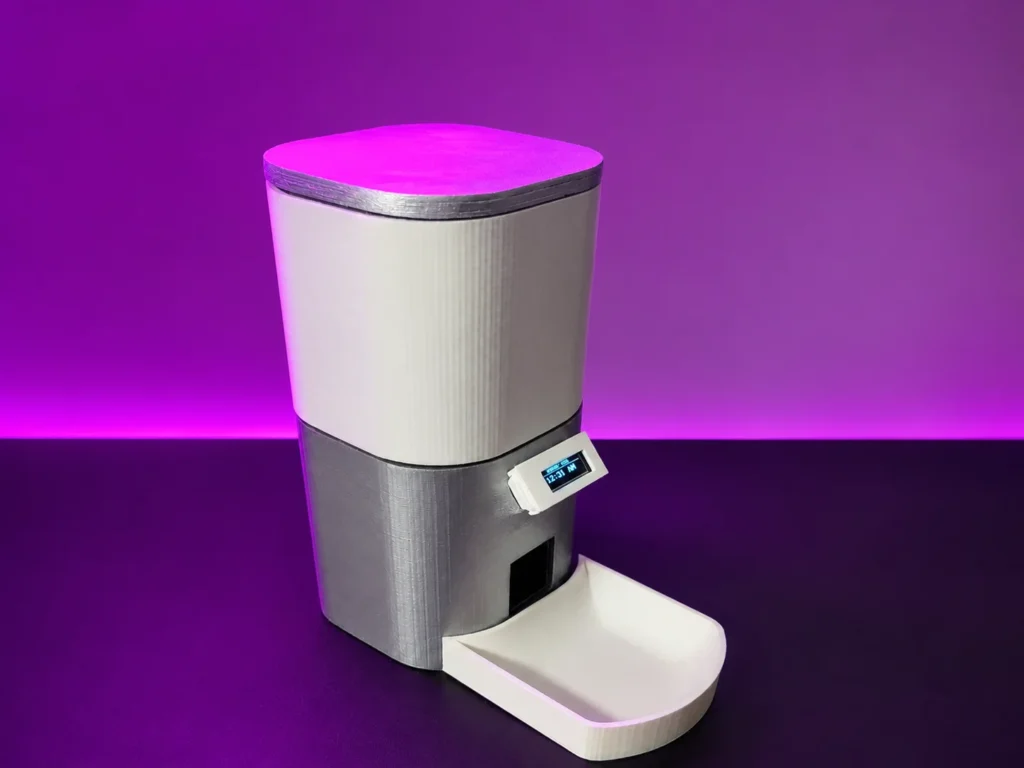
The project is built around an ESP32 development board and combines Bluetooth communication, a DS3231 real-time clock, a servo-operated dispensing mechanism and a compact 0.91-inch OLED display. All electronic and mechanical parts are installed inside a newly designed 3D-printed enclosure finished in a modern gray-and-white color combination.
This ESP32 Smart Bluetooth Pet Feeder combines mobile Custom app control, automatic RTC-based scheduling, an OLED status display, servo-operated food dispensing and a rechargeable battery-powered system.
The feeder uses two 18650 lithium-ion cells connected in parallel, a TP4056 charging module, an XL6019 boost converter and a 4700 µF capacitor. This power arrangement allows the feeder to operate without remaining permanently connected to an external adapter while supporting the higher temporary current required by the servo motor.
This is not a modified enclosure from our previous feeder. It is a separate product design with a different shape, component arrangement, visual style and user interface.
For readers who prefer a completely offline design with an Arduino Uno, keypad and 16×2 LCD, our earlier Arduino automatic pet feeder project presents a different control method. The project explained on this page focuses on smartphone-based Bluetooth control and a compact ESP32 platform.
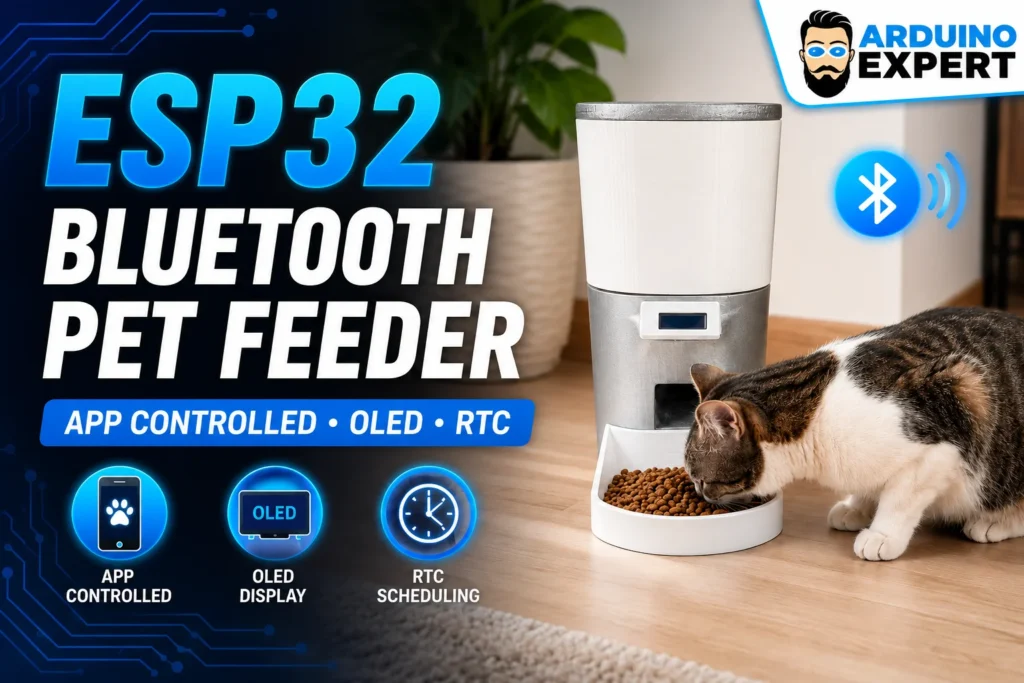
ESP32 Smart Bluetooth Pet Feeder Project Overview
The purpose of this project is to create a locally connected automatic pet feeder that can be controlled from a Custom mobile application without requiring Wi-Fi or an online account.
The ESP32 creates a Bluetooth device named:
ESP32-PET-FEEDERAfter pairing or connecting the phone with the feeder, the mobile control interface can send commands to:
- Dispense food immediately
- Configure the automatic feeding time
- Update the current time stored in the DS3231 RTC
- Receive confirmation messages from the feeder
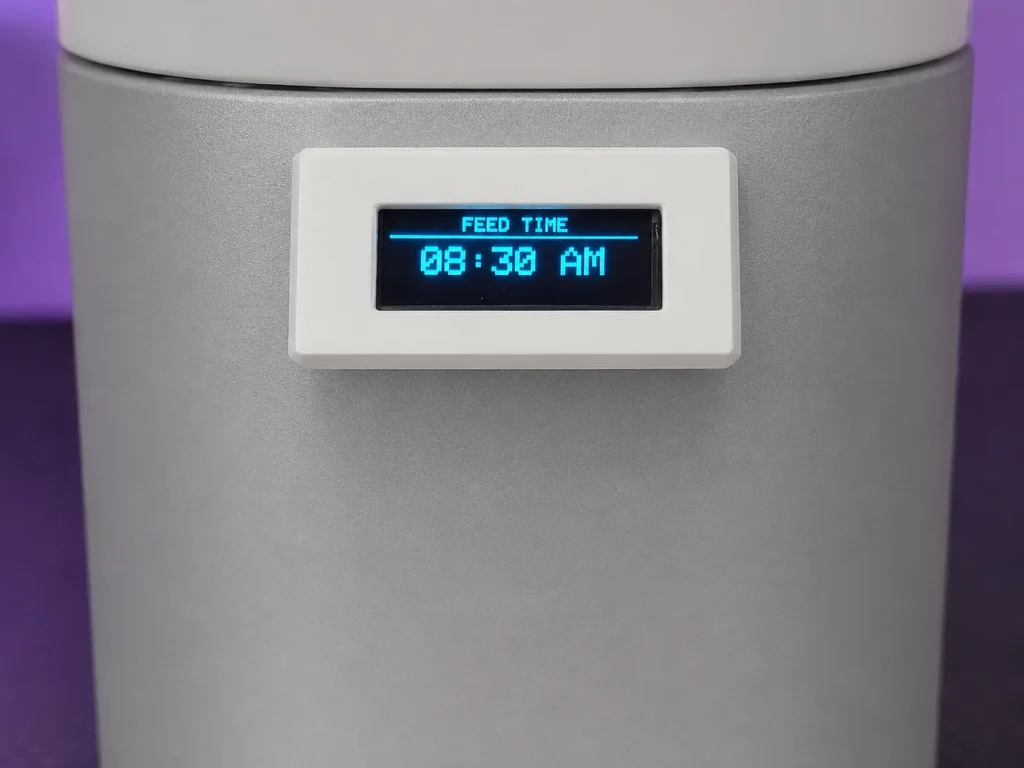
The DS3231 maintains the clock used for scheduled feeding. The OLED alternates between the current time and the selected feeding time. During dispensing, the normal display is replaced by a full-screen falling-dot animation that provides visual feedback that a feeding cycle is in progress.
A servo motor controls the mechanical outlet inside the enclosure. When a manual or scheduled feeding command is activated, the servo moves the dispensing mechanism to its open position. After the programmed interval, the servo returns to its closed position.
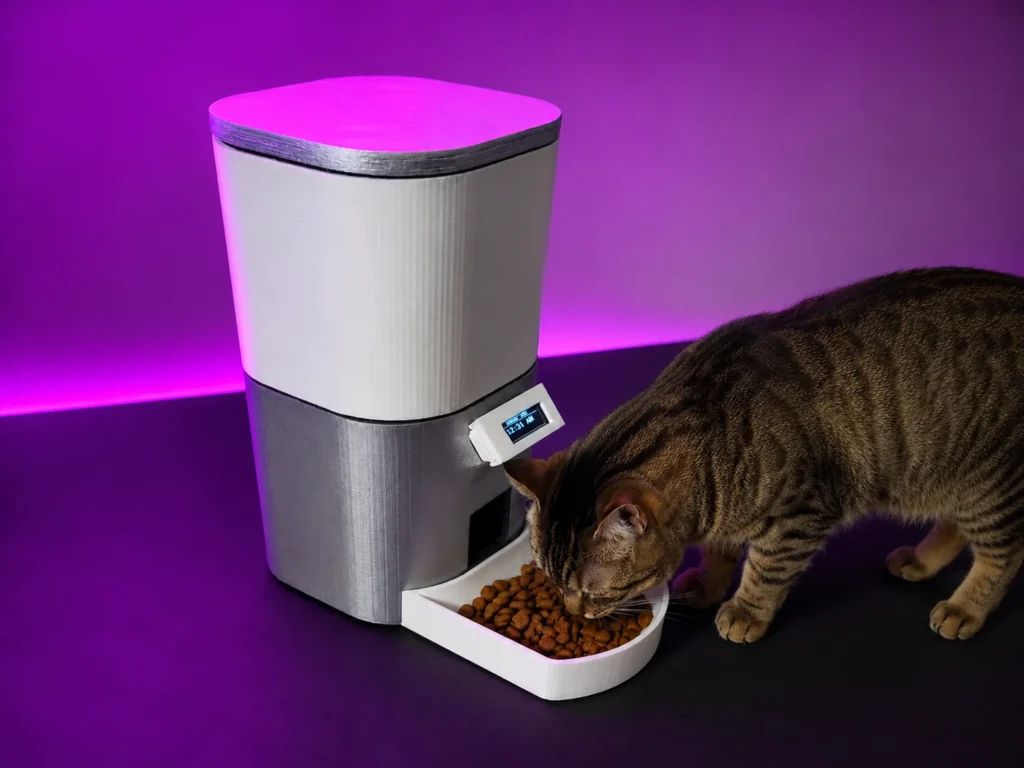
Main Features of the Bluetooth Pet Feeder
The current prototype includes the following functions:
- ESP32-based control system
- Dedicated custom Android application
- Bluetooth communication with a mobile device
- Manual feed command from the app
- Automatic daily feeding at a selected time
- Mobile configuration of the feeding schedule
- Mobile adjustment of the RTC clock
- Manual Feed Now
- control Multiple feeding schedules
- Portion-size selection
- feed statistics
- DS3231 real-time clock for accurate scheduling
- 0.91-inch 128×32 OLED display
- Portable/Rechargeable battery-powered operation
- Built-in TP4056 charging circuit
- XL6019 regulated boost-converter supply
- 4700 µF capacitor for power stabilization
- Alternating current-time and feed-time screens
- 12-hour time display with AM and PM
- Servo-operated food outlet
- Animated OLED response during feeding
- Local operation without Wi-Fi
- Custom-designed enclosure
- In-house 3D-printed body
- Gray-and-white painted finish
- Compact electronic and mechanical integration
Unlike a Wi-Fi or cloud feeder, this version is intended for short-range local control. It can continue using the RTC schedule when a phone is not actively connected.
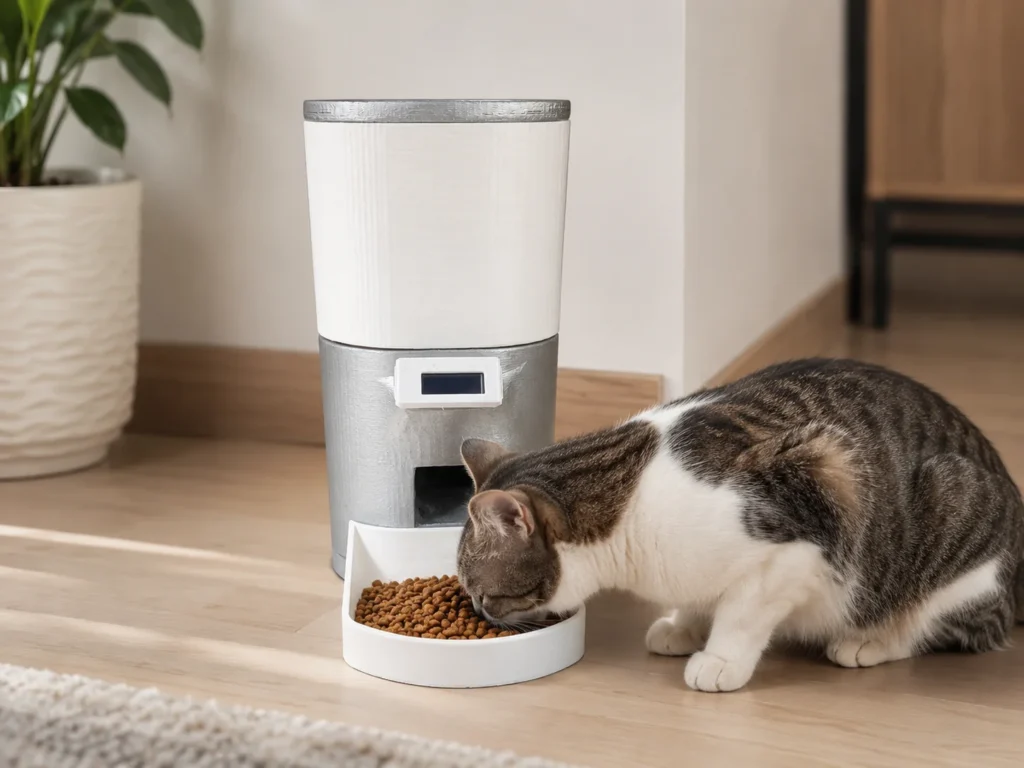
Why We Used ESP32?
The ESP32 acts as the main controller of the feeder. It communicates with the RTC and OLED through the I2C bus, controls the servo motor and manages the wireless connection with the mobile device.
Using one controller for all these tasks keeps the electronic architecture compact and reduces the need for a separate Bluetooth module.
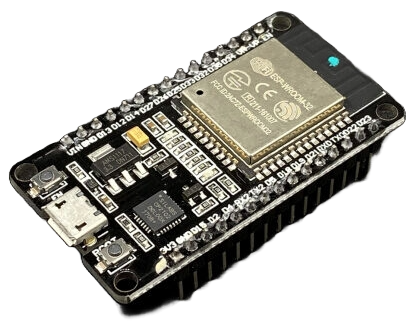
The ESP32 in this project performs four main jobs:
- It receives commands from the mobile app.
- It reads the current time from the DS3231.
- It operates the servo motor.
- It updates the OLED interface.
For custom embedded products that require wireless control, sensor integration or mobile connectivity, explore our ESP32 project development services.
Components Used in the ESP32 Bluetooth Pet Feeder
Main components:
| Component | Purpose |
|---|---|
| ESP32 development board | Main controller and Bluetooth Classic communication |
| Servo motor SG90 | Operates the food-dispensing mechanism |
| DS3231 RTC module | Maintains accurate date and time |
| 0.91-inch 128×32 OLED | Displays time, schedules and feeding status |
| Custom dispensing mechanism | Releases dry food |
| 3D-printed enclosure | Houses the electronics, batteries and food mechanism |
Power supply components:
Component | Purpose |
|---|---|
| Two 18650 lithium-ion cells | Provide rechargeable portable power |
| TP4056 charging module | Charges the parallel 1S battery pack |
| XL6019 boost converter | Raises and regulates the battery voltage for the feeder electronics (5V) |
| 4700 µF, 16 V capacitor | Reduces voltage dips and stabilizes the supply during servo operation |
| Battery holder | Holds and connects both cells in parallel |
| Charging input connector USB C-Type | Connects the external charging supply |
Rechargeable Battery and Power Management System
The Smart Bluetooth Pet Feeder includes an integrated rechargeable power system based on two 18650 lithium-ion battery cells.
Both cells are connected in parallel. This creates a 1S2P battery arrangement in which the voltage remains the same as a single lithium-ion cell while the total available capacity increases.
The battery pack provides approximately:
- 3.7 V nominal voltage
- 4.2 V when fully charged
- Increased capacity from the two parallel cells
TP4056 Charging Module
A TP4056 charging module is used to recharge the two-cell parallel battery pack from an external charging source.
Because the cells are connected in parallel, the battery assembly behaves electrically like one larger-capacity 3.7 V lithium-ion cell. This allows a single-cell lithium charging module to be used.
The charging module controls the lithium-ion charging process and provides charging-status indication. The TP4056 Module comes with overcharge, over-discharge, overcurrent, and short-circuit protection.
XL6019 Boost Converter
The battery voltage is lower than the voltage required by some parts of the feeder. An XL6019 boost-converter module is therefore used to increase the battery voltage. In our completed prototype, the XL6019 output was adjusted to 5 V and verified with a multimeter before connecting the ESP32 and servo.
4700 µF Power-Stabilizing Capacitor
Servo motors can draw a relatively high current when starting, moving or working against mechanical resistance. This sudden current demand can temporarily reduce the supply voltage and may cause the ESP32 to restart, the OLED to flicker or the Bluetooth connection to disconnect.
A 4700 µF, 16 V electrolytic capacitor is connected across the regulated power supply to help absorb short current surges and stabilize the voltage during servo movement.
The capacitor polarity must match the circuit:
- Positive terminal to the positive regulated supply
- Negative terminal to ground
All modules, including the ESP32, servo, OLED, RTC and power system, must share a common ground.
Power Flow
The power path of the feeder can be summarized as:
Two parallel 18650 cells
→ TP4056 charging system
→ XL6019 boost converter
→ 4700 µF filtering capacitor
→ ESP32, servo motor, OLED and RTC
This arrangement gives the pet feeder rechargeable and portable operation while maintaining a more stable supply for the servo-controlled dispensing mechanism.
Bluetooth Classic and BLE Options for the Smart Pet Feeder
The current version of our Smart Bluetooth Pet Feeder uses the ESP32 Bluetooth Classic Serial communication system. In the firmware, this connection is created using the BluetoothSerial library. Bluetooth Classic allows the ESP32 to communicate with a smartphone application through a serial-style wireless connection. The app sends simple text commands to the feeder for actions such as immediate feeding, updating the feeding schedule and synchronizing the DS3231 RTC time.
Can BLE Be Used Instead of Bluetooth Classic?
Yes. The ESP32 also supports Bluetooth Low Energy, commonly known as BLE. The current firmware can be redesigned to use BLE instead of Bluetooth Classic.
BLE works differently from serial Bluetooth communication. Instead of opening a serial connection, the ESP32 creates BLE services and characteristics. The mobile application reads from or writes to these characteristics to control the feeder. The below given code is for Bluetooth, however we can also provide code for BLE. No any Hardware changes required for BLE. Only changes in ESP32 Code and App are required.
How the ESP32 Smart Bluetooth Pet Feeder Works
The operating sequence can be divided into five parts.
1. Bluetooth Communication
When the feeder starts, the ESP32 activates its Bluetooth serial interface under the name:
ESP32-PET-FEEDERThe smartphone application connects to this device and sends a short command whenever the user presses a control button or changes a setting.
The firmware supports both legacy Bluetooth commands and an expanded protocol for multiple schedules, portion control, RTC synchronization, dashboard status, statistics and feeding history.
Each command has a different purpose.
2. RTC-Based Timekeeping
The DS3231 provides the current hour and minute to the ESP32. The system compares this time with the selected feeding schedule.
When both values match, the ESP32 starts the automatic dispensing sequence.
The RTC continues keeping time independently of the ESP32 as long as its backup battery and module are operating correctly.
3. Servo-Controlled Dispensing
The servo motor is connected to ESP32 GPIO 13.
During normal operation, the servo remains at the closed position:
60 degreesWhen feeding begins, it moves to:
0 degreesFor portion level 1, the outlet remains open for approximately two seconds. The firmware increases the opening duration according to the selected portion level, up to approximately ten seconds for portion level 5
These angles should be calibrated according to the actual orientation of the servo horn and the geometry of the printed feeding mechanism.
4. OLED User Interface
The OLED provides local visual feedback even when the mobile app is not open.
During normal operation, it alternates between:
- Current time
- Scheduled feeding time
Each screen remains visible for approximately five seconds.
During dispensing, the OLED runs a full-screen falling-dot animation. This creates an immediate visual indication that the motor has been activated.
5. Rechargeable Power Operation
The two parallel 18650 cells power the feeder when an external adapter is not connected. The XL6019 converter supplies the regulated system voltage, while the large capacitor supports the servo during short high-current movements.
The ESP32, OLED, RTC and Bluetooth system continue operating from the rechargeable battery supply. The DS3231 also has its own backup cell for maintaining time independently of the main feeder battery.
Dedicated Bluetooth Pet Feeder Mobile App
A dedicated Custom application was developed specifically for the Smart Bluetooth Pet Feeder. The app provides a cleaner and more practical control experience than a general-purpose Bluetooth terminal application.
It communicates directly with the ESP32 through Bluetooth Classic Serial Port Profile communication. The feeder and smartphone do not require Wi-Fi, a cloud platform or an active internet connection for normal local operation.
If you need any custom app, please visit our Custom App Development Services Page
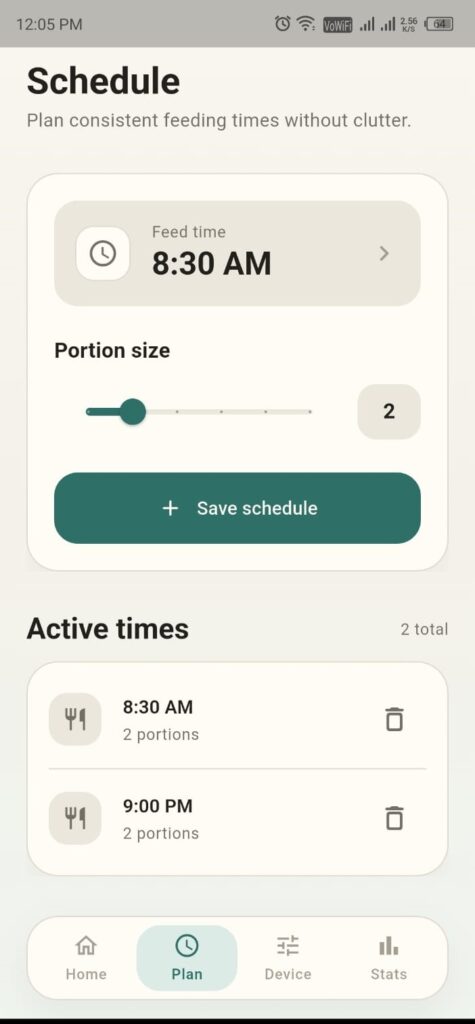
The app is divided into four main sections: Home, Plan, Device and Stats.
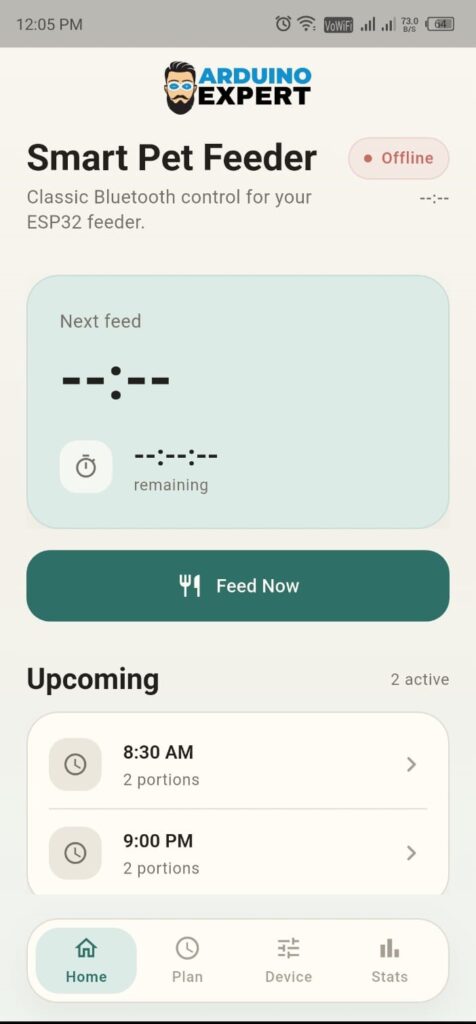
Home Dashboard
The Home screen provides a quick overview of the pet feeder.
It displays:
- Current Bluetooth connection status
- Next scheduled feeding time
- Remaining time before the next feed
- Manual Feed Now control
- Upcoming feeding schedules
- Selected portion quantity
The large Feed Now button allows the user to activate the dispensing mechanism immediately from the smartphone.
When the feeder is not connected, the application clearly displays an Offline status. After successful Bluetooth connection, the app can update the feeder information and controls according to the available device data.
Bluetooth Device Connection
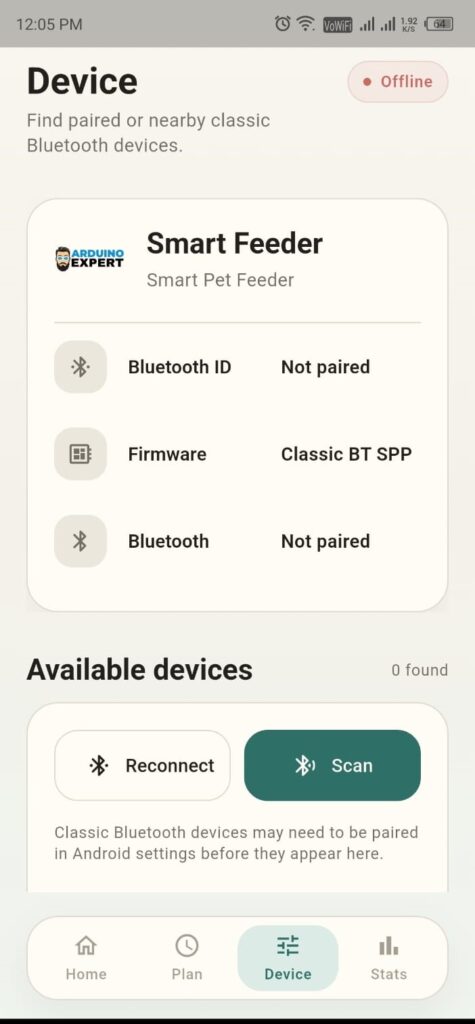
The Device screen manages communication between the Android application and the ESP32 pet feeder.
The current system uses Bluetooth Classic SPP communication.
The application provides controls for:
- Scanning for compatible Bluetooth devices
- Viewing paired or nearby devices
- Connecting to the Smart Pet Feeder
- Reconnecting to a previously selected feeder
- Displaying the connection status
- Showing the Bluetooth communication type
The application identifies the feeder as a Classic Bluetooth device rather than a BLE device.
Some Android phones require the feeder to be paired through the Android Bluetooth settings before it becomes available inside the application.
Feeding Schedule and Portion Settings
The Plan screen allows the user to configure automatic feeding times.
The application interface includes:
- Feeding-time selection
- Portion-size adjustment
- Schedule-saving control
- Active feeding-time list
- Multiple daily feeding entries
- Schedule deletion
For example, the user can configure one feeding time in the morning and another in the evening. Each saved schedule can include its selected portion quantity.
The active schedules are displayed in a clear list so that the user can review or remove them when required.
The ESP32 firmware stores and processes up to eight active feeding schedules in non-volatile memory. These schedules remain available after restarting the controller and continue operating after the smartphone disconnects.
Manual Feeding
The Feed Now button allows the user to dispense food immediately without waiting for an automatic schedule.
When the app is connected to the feeder, pressing Feed Now sends a Bluetooth command to the ESP32. The controller then operates the servo motor and releases the configured amount of dry food.
The app can record the action as a manual feeding event in the feeding-history section.
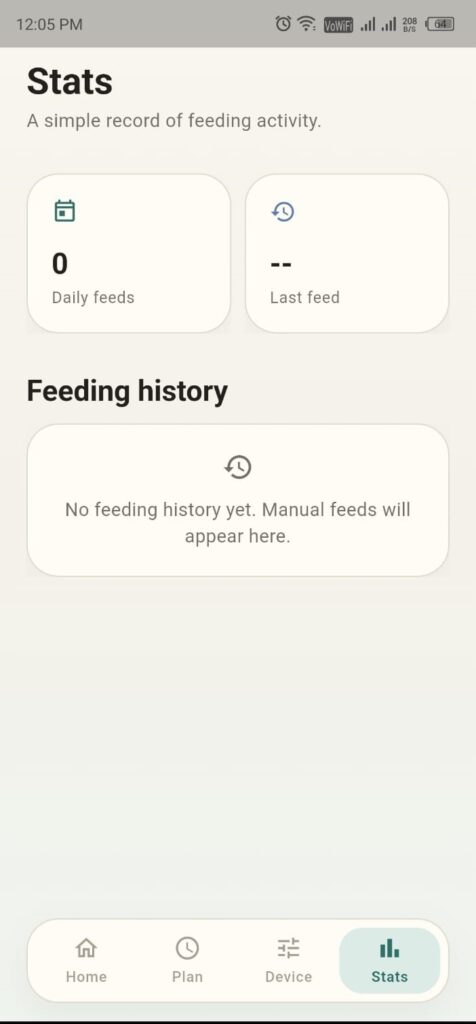
Feeding Statistics and History
The Stats screen provides a simple record of pet-feeding activity.
It can display:
- Number of feeds completed during the day
- Time of the most recent feeding
- Manual feeding records
- Scheduled feeding records
- Feeding-history entries
This information helps the user confirm whether a feeding action has already taken place. Feeding history is maintained by the ESP32 in non-volatile memory and can also be displayed or stored locally by the Android application. The firmware retains the latest 30 manual and scheduled feeding events.
Offline Local Operation
The current application communicates directly with the ESP32 through Bluetooth Classic.
This means:
- No internet connection is required
- No cloud account is required
- No external server is required
- Commands remain within Bluetooth range
- The feeder can continue following schedules stored locally in the ESP32
Alternative Control Using a Generic Bluetooth Terminal App
The dedicated Smart Pet Feeder Android app is the recommended way to control the feeder. It provides a user-friendly interface for manual feeding, schedule management, portion selection, device connection, statistics and feeding history.
However, the ESP32 feeder can also be controlled through a compatible Bluetooth Classic serial terminal app. This is useful when the custom app is unavailable or when testing and troubleshooting the feeder.
The current firmware uses Bluetooth Classic Serial Port Profile communication through the ESP32 BluetoothSerial library. A generic Android Bluetooth terminal app can therefore connect directly to the feeder and send supported text commands.
When a Bluetooth Terminal App Is Useful
A generic terminal app can be used for:
- Initial Bluetooth connection testing
- Manual feeding tests
- Adding or reviewing feeding schedules
- Setting the DS3231 date and time
- Checking the next feeding time
- Reading feeder statistics
- Viewing feeding history
- Firmware development and troubleshooting
Connecting to the Pet Feeder
- Power on the Smart Bluetooth Pet Feeder.
- Enable Bluetooth on the Android phone.
- Open the Android Bluetooth settings.
- Find and pair with:
ESP32-PET-FEEDER
- Open a Bluetooth Classic serial terminal application.
- Select the paired feeder.
- Connect to the ESP32.
- Set the terminal line ending to:
Newline / LF (\n)
- Enter a supported command and press Send.
Every command must end with a newline character. Without the newline, the ESP32 may not process the command correctly.
Manual Feeding Commands
To dispense one portion immediately, send:
FEED=1
To dispense three portions, send:
FEED=3
The supported portion values are:
1 to 5
The legacy manual-feed command is also supported:
W
A legacy command with a portion value may also be used:
W3
Add a Feeding Schedule
Use the following format:
SADD=HH:MM,PORTION
Example for feeding at 8:30 AM with portion level 2:
SADD=08:30,2
Example for feeding at 6:45 PM with portion level 3:
SADD=18:45,3
The updated firmware can store up to eight daily feeding schedules.
View Saved Schedules
Send:
SLIST?
The ESP32 will return the stored schedules, including their schedule IDs, times, portion values and enabled or disabled status.
Update a Schedule
Use:
SUPD=ID,HH:MM,PORTION,ENABLED
Example:
SUPD=1,18:30,3,1
This updates schedule ID 1 to 6:30 PM, portion level 3, and keeps it enabled.
The final value controls the schedule status:
1 = Enabled
0 = Disabled
Enable or Disable a Schedule
Disable schedule ID 1:
SENA=1,0
Enable schedule ID 1:
SENA=1,1
Delete a Schedule
Use:
SDEL=1
This deletes schedule ID 1.
Set the Complete RTC Date and Time
Use the following format:
TIME=YYYY-MM-DD,HH:MM:SS
Example:
TIME=2026-07-01,18:45:00
This updates the DS3231 RTC with the complete date and time.
Read Dashboard Information
Send:
STATUS?
The ESP32 can return information such as:
- Current RTC date and time
- Number of stored schedules
- Next feeding time
- Current feeding state
- Last feeding information
- RTC status
Read the Next Feeding Time
Send:
NEXT?
The feeder returns the next enabled feeding schedule and the remaining time before it runs.
Read Feeding Statistics
Send:
STATS?
The ESP32 returns available statistics such as:
- Total feeds completed today
- Manual feeds
- Scheduled feeds
- Last feeding time
- Last feeding type
- Last portion value
Read Feeding History
Send:
HISTORY?
The feeder returns the latest stored feeding events from ESP32 non-volatile memory.
The updated firmware can retain the most recent 30 manual and scheduled feeding records.
Legacy Commands
The firmware also supports the earlier basic command format for compatibility.
| Function | Legacy command |
|---|---|
| Feed immediately | W |
| Set one feeding time | T08:30AM |
| Set RTC time | C04:20PM |
The legacy commands are useful for simple testing, but the expanded command protocol is recommended for multiple schedules, portion control, statistics and history.
Command Summary
| Function | Example command |
|---|---|
| Feed one portion | FEED=1 |
| Feed three portions | FEED=3 |
| Add schedule | SADD=08:30,2 |
| Update schedule | SUPD=1,18:30,3,1 |
| Delete schedule | SDEL=1 |
| Disable schedule | SENA=1,0 |
| Enable schedule | SENA=1,1 |
| View schedules | SLIST? |
| Read status | STATUS? |
| Read next feed | NEXT? |
| Read statistics | STATS? |
| Read history | HISTORY? |
| Set RTC date and time | TIME=2026-07-01,18:45:00 |
Limitations of Generic Terminal Control
A Bluetooth terminal app can access the feeder’s basic and advanced commands, but it does not provide the same experience as the dedicated Smart Pet Feeder app.
A generic terminal normally does not provide:
- Visual schedule cards
- Time-picker controls
- Portion-selection buttons
- Feeding countdown
- Dashboard information
- Feeding-history screens
- Automatic command formatting
- Branded interface
- User-friendly error messages
The Bluetooth terminal method is therefore best used as an alternative control, testing and diagnostic option. The dedicated Android app remains the recommended interface for normal operation.
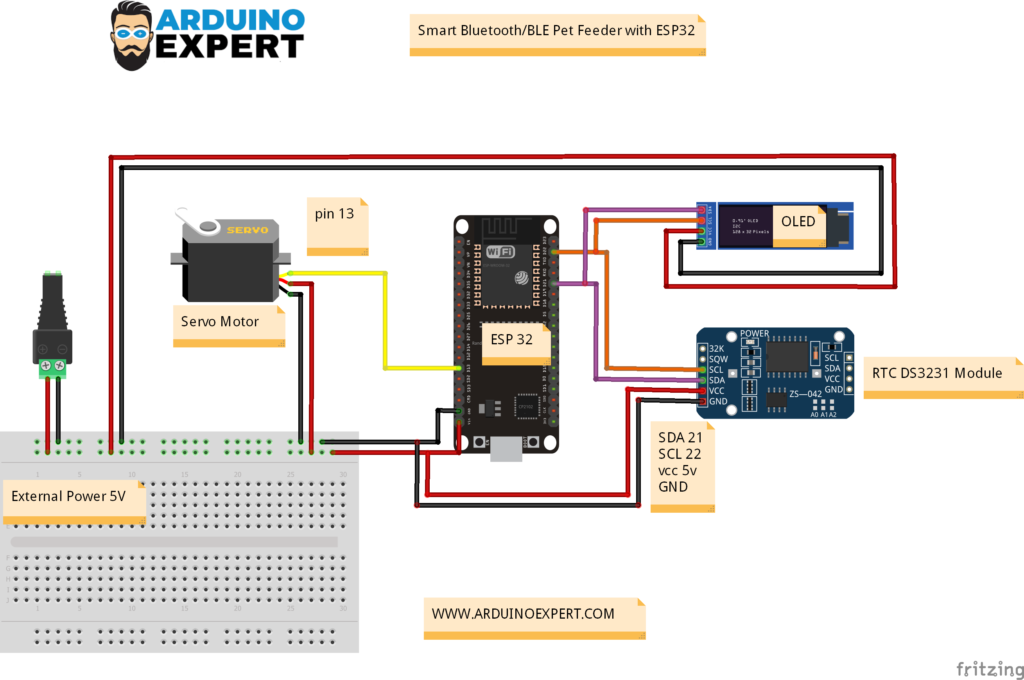
Circuit Diagram of Bluetooth Pet Feeder Project
1. Circuit Diagram with Battery and Charging Module:
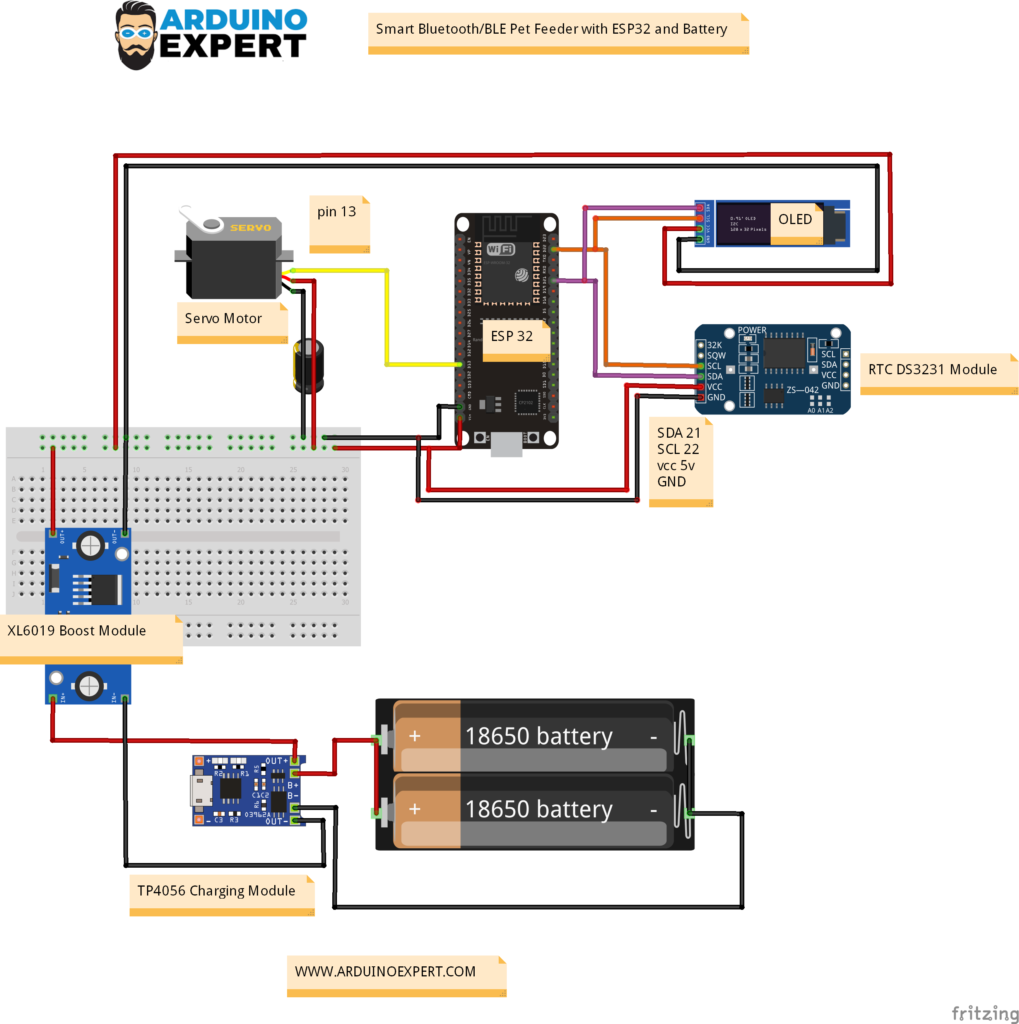
Wiring Connections:
| Module or Signal | ESP32 Connection |
| Servo signal | GPIO 13 |
| I2C SDA | GPIO 21 |
| I2C SCL | GPIO 22 |
| OLED I2C address | 0x3C |
| DS3231 SDA | Shared I2C SDA |
| DS3231 SCL | Shared I2C SCL |
Note: The OLED and DS3231 share the same I2C bus. The ESP32 and servo power grounds must be connected together so that the servo-control signal has a common reference.
For Power Side of System please keep in mind the following points:
- Both 18650 positive terminals connected together
- Both 18650 negative terminals connected together
- Parallel battery pack connected to the TP4056 battery terminals
- TP4056 output connected to the XL6019 input
- XL6019 output adjusted to the 5V
- Capacitor connected across the regulated output
- Servo powered from the regulated supply
Note: The exact XL6019 output voltage must match the final hardware configuration, typically 5V. It should be measured with a multimeter before connecting the ESP32 or servo.
2. Circuit Diagram with Direct Power Supply:
Required Arduino Libraries
Install the ESP32 board package in Arduino IDE before compiling the code.
The project uses the following libraries:
#include <Wire.h>
#include <RTClib.h>
#include <BluetoothSerial.h>
#include <ESP32Servo.h>
#include <Adafruit_GFX.h>
#include <Adafruit_SSD1306.h>
#include <Preferences.h>
#include <stddef.h>
Library Functions
Wiremanages I2C communication.RTClibcommunicates with the DS3231.BluetoothSerialprovides Bluetooth Classic serial communication.ESP32Servocontrols the servo motor.Adafruit_GFXprovides graphics functions.Adafruit_SSD1306controls the OLED display.Preferencesstores schedules, portion settings, statistics and feeding history in ESP32 non-volatile memory, allowing the information to remain available after a restart.
Installation Steps
- Open Arduino IDE.
- Go to Tools → Board → Boards Manager.
- Search for the ESP32 board package.
- Install the ESP32 by Espressif Systems.
- Open Sketch → Include Library → Manage Libraries.
- Install the all libraries one by one:
- RTClib by Adafruit
- ESP32Servo
- Adafruit GFX Library
- Adafruit SSD1306
- Select the ESP32 Dev board.
- Select the correct COM port.
- Compile and upload the program.
Complete ESP32 Bluetooth Pet Feeder Code
#include <Arduino.h>
#include <Wire.h>
#include <RTClib.h>
#include <BluetoothSerial.h>
#include <ESP32Servo.h>
#include <Adafruit_GFX.h>
#include <Adafruit_SSD1306.h>
#include <Preferences.h>
#include <stddef.h>

#if !defined(CONFIG_BT_ENABLED) || !defined(CONFIG_BLUEDROID_ENABLED)
#error Bluetooth is not enabled in this ESP32 build.
#endif

#if !defined(CONFIG_BT_SPP_ENABLED)
#error Bluetooth Classic SPP is not available on this ESP32 target. Use an original ESP32 board, not ESP32-S2/S3/C3/C6.
#endif

// ============================================================
// HARDWARE CONFIGURATION — existing project pins are preserved
// ============================================================
constexpr uint8_t I2C_SDA_PIN = 21;
constexpr uint8_t I2C_SCL_PIN = 22;
constexpr uint8_t SERVO_PIN = 13;

constexpr uint8_t SCREEN_WIDTH = 128;
constexpr uint8_t SCREEN_HEIGHT = 32;
constexpr int8_t OLED_RESET_PIN = -1;
constexpr uint8_t OLED_ADDRESS = 0x3C;

constexpr uint8_t SERVO_OPEN_ANGLE = 0;
constexpr uint8_t SERVO_CLOSED_ANGLE = 60;
constexpr uint16_t SERVO_MIN_PULSE_US = 500;
constexpr uint16_t SERVO_MAX_PULSE_US = 2400;

// One portion keeps the outlet open for 2 seconds, preserving
// the original project behavior. Calibrate this value for your
// actual food size and dispensing mechanism.
constexpr uint32_t PORTION_BASE_DURATION_MS = 2000UL;
constexpr uint8_t MIN_PORTION = 1;
constexpr uint8_t MAX_PORTION = 5;

constexpr char BLUETOOTH_DEVICE_NAME[] = "ESP32-PET-FEEDER";

// ============================================================
// APPLICATION CAPACITY
// ============================================================
constexpr uint8_t MAX_SCHEDULES = 8;
constexpr uint8_t MAX_HISTORY_EVENTS = 30;
constexpr uint8_t COMMAND_BUFFER_SIZE = 128;
constexpr uint32_t DISPLAY_PAGE_DURATION_MS = 5000UL;

// ============================================================
// NON-VOLATILE STORAGE
// ============================================================
constexpr uint32_t CONFIG_MAGIC = 0x50464332UL;   // "PFC2"
constexpr uint32_t HISTORY_MAGIC = 0x50464832UL;  // "PFH2"
constexpr uint16_t STORAGE_VERSION = 2;

struct FeedSchedule {
  uint8_t id;
  uint8_t hour;
  uint8_t minute;
  uint8_t portion;
  uint8_t enabled;
  uint32_t lastFeedDate;  // YYYYMMDD; prevents duplicate daily feeding
};

struct ConfigBlob {
  uint32_t magic;
  uint16_t version;
  uint8_t scheduleCount;
  uint8_t nextScheduleId;
  uint8_t manualPortion;
  FeedSchedule schedules[MAX_SCHEDULES];
  uint32_t crc;
};

enum class FeedEventType : uint8_t {
  MANUAL = 1,
  SCHEDULED = 2
};

struct FeedHistoryEvent {
  uint32_t unixTime;
  uint8_t type;
  uint8_t portion;
  uint8_t scheduleId;
  uint8_t reserved;
};

struct HistoryBlob {
  uint32_t magic;
  uint16_t version;
  uint8_t count;
  uint8_t head;  // next insertion position
  FeedHistoryEvent events[MAX_HISTORY_EVENTS];
  uint32_t crc;
};

// ============================================================
// OBJECTS AND RUNTIME STATE
// ============================================================
Adafruit_SSD1306 display(SCREEN_WIDTH, SCREEN_HEIGHT, &Wire, OLED_RESET_PIN);
RTC_DS3231 rtc;
BluetoothSerial SerialBT;
Servo feederServo;
Preferences preferences;

ConfigBlob configData{};
HistoryBlob historyData{};

bool oledReady = false;
bool rtcPresent = false;
bool rtcReady = false;
bool servoReady = false;
bool feeding = false;

uint32_t feedStartMs = 0;
uint32_t feedDurationMs = 0;
uint8_t activeFeedPortion = 1;
uint8_t activeScheduleId = 0;
FeedEventType activeFeedType = FeedEventType::MANUAL;

uint32_t displayPageStartedMs = 0;

char bluetoothCommandBuffer[COMMAND_BUFFER_SIZE]{};
size_t bluetoothCommandLength = 0;
char usbCommandBuffer[COMMAND_BUFFER_SIZE]{};
size_t usbCommandLength = 0;

// ============================================================
// OLED FEEDING ANIMATION
// ============================================================
constexpr uint8_t NUM_DOTS = 45;
struct Dot {
  float x;
  float y;
  float speed;
};
Dot dots[NUM_DOTS];

// ============================================================
// FORWARD DECLARATIONS
// ============================================================
void sendStatus(Print &out);
void sendScheduleList(Print &out);
void sendHistory(Print &out);
void sendStats(Print &out);
void sendNextFeed(Print &out);
void processCommand(const String &rawCommand, Print &out);

// ============================================================
// CRC AND STORAGE HELPERS
// ============================================================
uint32_t calculateCrc32(const uint8_t *data, size_t length) {
  uint32_t crc = 0xFFFFFFFFUL;
  for (size_t i = 0; i < length; ++i) {
    crc ^= data[i];
    for (uint8_t bit = 0; bit < 8; ++bit) {
      crc = (crc >> 1) ^ (0xEDB88320UL & (0UL - (crc & 1UL)));
    }
  }
  return ~crc;
}

void updateConfigCrc() {
  configData.crc = calculateCrc32(
      reinterpret_cast<const uint8_t *>(&configData),
      offsetof(ConfigBlob, crc));
}

bool configCrcValid() {
  const uint32_t expected = calculateCrc32(
      reinterpret_cast<const uint8_t *>(&configData),
      offsetof(ConfigBlob, crc));
  return configData.crc == expected;
}

void updateHistoryCrc() {
  historyData.crc = calculateCrc32(
      reinterpret_cast<const uint8_t *>(&historyData),
      offsetof(HistoryBlob, crc));
}

bool historyCrcValid() {
  const uint32_t expected = calculateCrc32(
      reinterpret_cast<const uint8_t *>(&historyData),
      offsetof(HistoryBlob, crc));
  return historyData.crc == expected;
}

void sortSchedulesByTime() {
  for (uint8_t i = 0; i < configData.scheduleCount; ++i) {
    for (uint8_t j = i + 1; j < configData.scheduleCount; ++j) {
      const uint16_t firstMinutes =
          static_cast<uint16_t>(configData.schedules[i].hour) * 60U +
          configData.schedules[i].minute;
      const uint16_t secondMinutes =
          static_cast<uint16_t>(configData.schedules[j].hour) * 60U +
          configData.schedules[j].minute;
      if (secondMinutes < firstMinutes) {
        const FeedSchedule temporary = configData.schedules[i];
        configData.schedules[i] = configData.schedules[j];
        configData.schedules[j] = temporary;
      }
    }
  }
}

void setDefaultConfig() {
  memset(&configData, 0, sizeof(configData));

  configData.magic = CONFIG_MAGIC;
  configData.version = STORAGE_VERSION;
  configData.scheduleCount = 0;
  configData.nextScheduleId = 1;
  configData.manualPortion = 1;

  updateConfigCrc();
}


void setDefaultHistory() {
  memset(&historyData, 0, sizeof(historyData));
  historyData.magic = HISTORY_MAGIC;
  historyData.version = STORAGE_VERSION;
  updateHistoryCrc();
}

bool saveConfig() {
  sortSchedulesByTime();
  updateConfigCrc();
  return preferences.putBytes("config", &configData, sizeof(configData)) ==
         sizeof(configData);
}

bool saveHistory() {
  updateHistoryCrc();
  return preferences.putBytes("history", &historyData, sizeof(historyData)) ==
         sizeof(historyData);
}

void loadPersistentData() {
  const size_t configSize = preferences.getBytesLength("config");
  if (configSize == sizeof(configData)) {
    preferences.getBytes("config", &configData, sizeof(configData));
  }

  if (configSize != sizeof(configData) ||
      configData.magic != CONFIG_MAGIC ||
      configData.version != STORAGE_VERSION ||
      configData.scheduleCount > MAX_SCHEDULES ||
      configData.manualPortion < MIN_PORTION ||
      configData.manualPortion > MAX_PORTION ||
      !configCrcValid()) {
    setDefaultConfig();
    saveConfig();
  } else {
    sortSchedulesByTime();
  }

  const size_t historySize = preferences.getBytesLength("history");
  if (historySize == sizeof(historyData)) {
    preferences.getBytes("history", &historyData, sizeof(historyData));
  }

  if (historySize != sizeof(historyData) ||
      historyData.magic != HISTORY_MAGIC ||
      historyData.version != STORAGE_VERSION ||
      historyData.count > MAX_HISTORY_EVENTS ||
      historyData.head >= MAX_HISTORY_EVENTS ||
      !historyCrcValid()) {
    setDefaultHistory();
    saveHistory();
  }
}

// ============================================================
// TIME HELPERS
// ============================================================
bool isLeapYear(uint16_t year) {
  return (year % 4U == 0U && year % 100U != 0U) || (year % 400U == 0U);
}

uint8_t daysInMonth(uint16_t year, uint8_t month) {
  static const uint8_t DAYS[] = {31, 28, 31, 30, 31, 30,
                                 31, 31, 30, 31, 30, 31};
  if (month < 1 || month > 12) {
    return 0;
  }
  if (month == 2 && isLeapYear(year)) {
    return 29;
  }
  return DAYS[month - 1];
}

bool validDateTime(uint16_t year, uint8_t month, uint8_t day,
                   uint8_t hour, uint8_t minute, uint8_t second) {
  if (year < 2024 || year > 2099) return false;
  if (month < 1 || month > 12) return false;
  if (day < 1 || day > daysInMonth(year, month)) return false;
  if (hour > 23 || minute > 59 || second > 59) return false;
  return true;
}

uint32_t dateKey(const DateTime &dateTime) {
  return static_cast<uint32_t>(dateTime.year()) * 10000UL +
         static_cast<uint32_t>(dateTime.month()) * 100UL +
         dateTime.day();
}

void formatDateTime24(const DateTime &dateTime, char *buffer, size_t size) {
  snprintf(buffer, size, "%04u-%02u-%02uT%02u:%02u:%02u",
           dateTime.year(), dateTime.month(), dateTime.day(),
           dateTime.hour(), dateTime.minute(), dateTime.second());
}

void formatTime24(uint8_t hour, uint8_t minute, char *buffer, size_t size) {
  snprintf(buffer, size, "%02u:%02u", hour, minute);
}

void formatTime12(uint8_t hour, uint8_t minute, char *buffer, size_t size) {
  const bool pm = hour >= 12;
  uint8_t displayHour = hour % 12;
  if (displayHour == 0) displayHour = 12;
  snprintf(buffer, size, "%02u:%02u %s", displayHour, minute,
           pm ? "PM" : "AM");
}

bool parseTwoDigits(const String &text, int startIndex, uint8_t &value) {
  if (startIndex < 0 || startIndex + 1 >= static_cast<int>(text.length())) {
    return false;
  }
  const char first = text.charAt(startIndex);
  const char second = text.charAt(startIndex + 1);
  if (!isDigit(first) || !isDigit(second)) return false;
  value = static_cast<uint8_t>((first - '0') * 10 + (second - '0'));
  return true;
}

bool parseTime24(const String &text, uint8_t &hour, uint8_t &minute) {
  if (text.length() != 5 || text.charAt(2) != ':') return false;
  if (!parseTwoDigits(text, 0, hour) || !parseTwoDigits(text, 3, minute)) {
    return false;
  }
  return hour <= 23 && minute <= 59;
}

bool parseTime12(const String &text, uint8_t &hour24, uint8_t &minute) {
  if (text.length() != 7 || text.charAt(2) != ':') return false;

  uint8_t hour12 = 0;
  if (!parseTwoDigits(text, 0, hour12) || !parseTwoDigits(text, 3, minute)) {
    return false;
  }

  const String suffix = text.substring(5, 7);
  if (hour12 < 1 || hour12 > 12 || minute > 59 ||
      (suffix != "AM" && suffix != "PM")) {
    return false;
  }

  hour24 = hour12 % 12;
  if (suffix == "PM") hour24 += 12;
  return true;
}

bool parseDateTimePayload(const String &payload, DateTime &result) {
  // Exact format: YYYY-MM-DD,HH:MM:SS
  if (payload.length() != 19 || payload.charAt(4) != '-' ||
      payload.charAt(7) != '-' || payload.charAt(10) != ',' ||
      payload.charAt(13) != ':' || payload.charAt(16) != ':') {
    return false;
  }

  for (uint8_t index : {0, 1, 2, 3, 5, 6, 8, 9, 11, 12, 14, 15, 17, 18}) {
    if (!isDigit(payload.charAt(index))) return false;
  }

  const uint16_t year = payload.substring(0, 4).toInt();
  const uint8_t month = payload.substring(5, 7).toInt();
  const uint8_t day = payload.substring(8, 10).toInt();
  const uint8_t hour = payload.substring(11, 13).toInt();
  const uint8_t minute = payload.substring(14, 16).toInt();
  const uint8_t second = payload.substring(17, 19).toInt();

  if (!validDateTime(year, month, day, hour, minute, second)) return false;
  result = DateTime(year, month, day, hour, minute, second);
  return true;
}

// ============================================================
// SCHEDULE HELPERS
// ============================================================
int findScheduleIndexById(uint8_t id) {
  for (uint8_t i = 0; i < configData.scheduleCount; ++i) {
    if (configData.schedules[i].id == id) return i;
  }
  return -1;
}

bool scheduleTimeExists(uint8_t hour, uint8_t minute, int ignoreIndex = -1) {
  for (uint8_t i = 0; i < configData.scheduleCount; ++i) {
    if (static_cast<int>(i) == ignoreIndex) continue;
    if (configData.schedules[i].hour == hour &&
        configData.schedules[i].minute == minute) {
      return true;
    }
  }
  return false;
}

uint8_t allocateScheduleId() {
  for (uint16_t attempts = 0; attempts < 255; ++attempts) {
    uint8_t candidate = configData.nextScheduleId;
    if (candidate == 0) candidate = 1;
    configData.nextScheduleId = candidate + 1;
    if (configData.nextScheduleId == 0) configData.nextScheduleId = 1;
    if (findScheduleIndexById(candidate) < 0) return candidate;
  }
  return 0;
}

bool addSchedule(uint8_t hour, uint8_t minute, uint8_t portion,
                 uint8_t &createdId) {
  if (configData.scheduleCount >= MAX_SCHEDULES ||
      portion < MIN_PORTION || portion > MAX_PORTION ||
      scheduleTimeExists(hour, minute)) {
    return false;
  }

  const uint8_t id = allocateScheduleId();
  if (id == 0) return false;

  configData.schedules[configData.scheduleCount++] =
      {id, hour, minute, portion, 1, 0};
  createdId = id;
  return saveConfig();
}

bool updateSchedule(uint8_t id, uint8_t hour, uint8_t minute,
                    uint8_t portion, bool enabled) {
  const int index = findScheduleIndexById(id);
  if (index < 0 || portion < MIN_PORTION || portion > MAX_PORTION ||
      scheduleTimeExists(hour, minute, index)) {
    return false;
  }

  FeedSchedule &schedule = configData.schedules[index];
  const bool timeChanged = schedule.hour != hour || schedule.minute != minute;
  schedule.hour = hour;
  schedule.minute = minute;
  schedule.portion = portion;
  schedule.enabled = enabled ? 1 : 0;
  if (timeChanged) schedule.lastFeedDate = 0;
  return saveConfig();
}

bool deleteSchedule(uint8_t id) {
  const int index = findScheduleIndexById(id);
  if (index < 0) return false;

  for (uint8_t i = index; i + 1 < configData.scheduleCount; ++i) {
    configData.schedules[i] = configData.schedules[i + 1];
  }
  --configData.scheduleCount;
  memset(&configData.schedules[configData.scheduleCount], 0,
         sizeof(FeedSchedule));
  return saveConfig();
}

bool setScheduleEnabled(uint8_t id, bool enabled) {
  const int index = findScheduleIndexById(id);
  if (index < 0) return false;
  configData.schedules[index].enabled = enabled ? 1 : 0;
  return saveConfig();
}

bool clearSchedules() {
  configData.scheduleCount = 0;
  memset(configData.schedules, 0, sizeof(configData.schedules));
  return saveConfig();
}

struct NextFeedInfo {
  bool valid;
  uint8_t scheduleId;
  uint8_t portion;
  uint32_t unixTime;
};

NextFeedInfo calculateNextFeed(const DateTime &now) {
  NextFeedInfo result{false, 0, 0, 0};
  if (!rtcReady) return result;

  const uint32_t today = dateKey(now);

  for (uint8_t i = 0; i < configData.scheduleCount; ++i) {
    const FeedSchedule &schedule = configData.schedules[i];
    if (!schedule.enabled) continue;

    DateTime candidate(now.year(), now.month(), now.day(),
                       schedule.hour, schedule.minute, 0);
    uint32_t candidateUnix = candidate.unixtime();

    const bool currentlyDue =
        schedule.lastFeedDate != today &&
        now.hour() == schedule.hour && now.minute() == schedule.minute;

    if (!currentlyDue &&
        (schedule.lastFeedDate == today || candidateUnix <= now.unixtime())) {
      candidateUnix += 86400UL;
    }

    if (!result.valid || candidateUnix < result.unixTime) {
      result.valid = true;
      result.scheduleId = schedule.id;
      result.portion = schedule.portion;
      result.unixTime = candidateUnix;
    }
  }

  return result;
}

// ============================================================
// HISTORY AND STATISTICS
// ============================================================
void addHistoryEvent(FeedEventType type, uint8_t portion,
                     uint8_t scheduleId) {
  FeedHistoryEvent event{};
  event.unixTime = rtcReady ? rtc.now().unixtime() : 0;
  event.type = static_cast<uint8_t>(type);
  event.portion = portion;
  event.scheduleId = scheduleId;

  historyData.events[historyData.head] = event;
  historyData.head = (historyData.head + 1) % MAX_HISTORY_EVENTS;
  if (historyData.count < MAX_HISTORY_EVENTS) ++historyData.count;
  saveHistory();
}

bool getHistoryNewest(uint8_t newestOffset, FeedHistoryEvent &event) {
  if (newestOffset >= historyData.count) return false;
  int index = static_cast<int>(historyData.head) - 1 - newestOffset;
  while (index < 0) index += MAX_HISTORY_EVENTS;
  event = historyData.events[index];
  return true;
}

struct TodayFeedStats {
  uint16_t total;
  uint16_t manual;
  uint16_t scheduled;
};

TodayFeedStats calculateTodayStats(const DateTime &now) {
  TodayFeedStats stats{0, 0, 0};
  const uint32_t today = dateKey(now);
  for (uint8_t i = 0; i < historyData.count; ++i) {
    FeedHistoryEvent event{};
    if (!getHistoryNewest(i, event) || event.unixTime == 0) continue;
    if (dateKey(DateTime(event.unixTime)) != today) continue;

    ++stats.total;
    if (event.type == static_cast<uint8_t>(FeedEventType::MANUAL)) {
      ++stats.manual;
    } else if (event.type == static_cast<uint8_t>(FeedEventType::SCHEDULED)) {
      ++stats.scheduled;
    }
  }
  return stats;
}

// ============================================================
// SERVO AND FEEDING STATE MACHINE
// ============================================================
uint32_t portionDurationMs(uint8_t portion) {
  if (portion < MIN_PORTION) portion = MIN_PORTION;
  if (portion > MAX_PORTION) portion = MAX_PORTION;
  return PORTION_BASE_DURATION_MS * portion;
}

void broadcastLine(const String &message) {
  Serial.println(message);
  SerialBT.println(message);
}

bool startFeeding(uint8_t portion, FeedEventType type, uint8_t scheduleId,
                  Print *commandOutput = nullptr) {
  if (!servoReady) {
    if (commandOutput != nullptr) {
      commandOutput->println("ERR|SERVO_NOT_READY|Servo is not available");
    }
    return false;
  }

  if (feeding) {
    if (commandOutput != nullptr) {
      commandOutput->println("ERR|BUSY|Feeder is already dispensing");
    }
    return false;
  }

  if (portion < MIN_PORTION || portion > MAX_PORTION) {
    if (commandOutput != nullptr) {
      commandOutput->println("ERR|PORTION|Portion must be 1 to 5");
    }
    return false;
  }

  activeFeedPortion = portion;
  activeFeedType = type;
  activeScheduleId = scheduleId;
  feedDurationMs = portionDurationMs(portion);
  feedStartMs = millis();
  feeding = true;

  feederServo.write(SERVO_OPEN_ANGLE);

  char eventLine[128];
  snprintf(eventLine, sizeof(eventLine),
           "EVENT|FEEDING_STARTED|TYPE=%s|PORTION=%u|SCHEDULE=%u|DURATION_MS=%lu",
           type == FeedEventType::MANUAL ? "MANUAL" : "SCHEDULED",
           portion, scheduleId, static_cast<unsigned long>(feedDurationMs));
  broadcastLine(eventLine);

  // Backward-compatible text used by the original app/terminal workflow.
  SerialBT.println("Feeding sequence started...");
  return true;
}

void completeFeeding() {
  feederServo.write(SERVO_CLOSED_ANGLE);
  feeding = false;

  addHistoryEvent(activeFeedType, activeFeedPortion, activeScheduleId);

  char eventLine[112];
  snprintf(eventLine, sizeof(eventLine),
           "EVENT|FEEDING_COMPLETE|TYPE=%s|PORTION=%u|SCHEDULE=%u",
           activeFeedType == FeedEventType::MANUAL ? "MANUAL" : "SCHEDULED",
           activeFeedPortion, activeScheduleId);
  broadcastLine(eventLine);

  // Backward-compatible response.
  SerialBT.println("Feeding complete.");
}

void updateFeedingState() {
  if (feeding && millis() - feedStartMs >= feedDurationMs) {
    completeFeeding();
  }
}

void checkAutomaticSchedules(const DateTime &now) {
  if (!rtcReady || feeding) return;

  const uint32_t today = dateKey(now);
  for (uint8_t i = 0; i < configData.scheduleCount; ++i) {
    FeedSchedule &schedule = configData.schedules[i];
    if (!schedule.enabled || schedule.lastFeedDate == today) continue;

    if (now.hour() == schedule.hour && now.minute() == schedule.minute) {
      // Mark before moving the servo. This prevents duplicate dispensing if
      // the ESP32 resets during the scheduled feeding minute.
      const uint8_t dueScheduleId = schedule.id;
      const uint8_t duePortion = schedule.portion;
      schedule.lastFeedDate = today;
      if (!saveConfig()) {
        broadcastLine("ERR|STORAGE|Unable to save scheduled-feed lock");
        return;
      }
      startFeeding(duePortion, FeedEventType::SCHEDULED, dueScheduleId);
      break;
    }
  }
}

// ============================================================
// OLED FUNCTIONS
// ============================================================
void initDots() {
  for (uint8_t i = 0; i < NUM_DOTS; ++i) {
    dots[i].x = random(0, SCREEN_WIDTH);
    dots[i].y = random(-SCREEN_HEIGHT, 0);
    dots[i].speed = random(2, 6);
  }
}

void showCenteredTitle(const char *title) {
  display.setTextSize(1);
  const int16_t x = max(0, (SCREEN_WIDTH - static_cast<int>(strlen(title)) * 6) / 2);
  display.setCursor(x, 0);
  display.print(title);
  display.drawLine(0, 10, SCREEN_WIDTH - 1, 10, SSD1306_WHITE);
}

void showCurrentTime(const DateTime &now) {
  if (!oledReady) return;
  display.clearDisplay();
  display.setTextColor(SSD1306_WHITE);
  showCenteredTitle("CURRENT TIME");

  char timeText[12];
  formatTime12(now.hour(), now.minute(), timeText, sizeof(timeText));
  display.setTextSize(2);
  display.setCursor(16, 16);
  display.print(timeText);
  display.display();
}

void showNextFeed(const DateTime &now) {
  if (!oledReady) return;
  display.clearDisplay();
  display.setTextColor(SSD1306_WHITE);

  const NextFeedInfo next = calculateNextFeed(now);
  if (!next.valid) {
    showCenteredTitle("NEXT FEED");
    display.setTextSize(1);
    display.setCursor(28, 19);
    display.print("NO SCHEDULE");
    display.display();
    return;
  }

  char title[20];
  snprintf(title, sizeof(title), "NEXT FEED  P%u", next.portion);
  showCenteredTitle(title);

  const DateTime nextTime(next.unixTime);
  char timeText[12];
  formatTime12(nextTime.hour(), nextTime.minute(), timeText, sizeof(timeText));
  display.setTextSize(2);
  display.setCursor(16, 16);
  display.print(timeText);
  display.display();
}

void showRtcError() {
  if (!oledReady) return;
  display.clearDisplay();
  display.setTextColor(SSD1306_WHITE);
  showCenteredTitle("RTC NOT READY");
  display.setTextSize(1);
  display.setCursor(22, 18);
  display.print("SYNC FROM APP");
  display.display();
}

void showFeedingAnimation() {
  if (!oledReady) return;
  display.clearDisplay();
  for (uint8_t i = 0; i < NUM_DOTS; ++i) {
    display.fillCircle(static_cast<int>(dots[i].x),
                       static_cast<int>(dots[i].y),
                       1, SSD1306_WHITE);
    dots[i].y += dots[i].speed;
    if (dots[i].y > SCREEN_HEIGHT) {
      dots[i].y = random(-10, 0);
      dots[i].x = random(0, SCREEN_WIDTH);
    }
  }

  display.fillRect(34, 11, 60, 12, SSD1306_BLACK);
  display.drawRect(34, 11, 60, 12, SSD1306_WHITE);
  display.setTextSize(1);
  display.setTextColor(SSD1306_WHITE);
  display.setCursor(43, 13);
  display.print("FEEDING");
  display.display();
}

void updateDisplay(const DateTime &now) {
  if (!oledReady) return;
  if (feeding) {
    showFeedingAnimation();
    return;
  }
  if (!rtcReady) {
    showRtcError();
    return;
  }

  const uint32_t elapsed = millis() - displayPageStartedMs;
  if (elapsed < DISPLAY_PAGE_DURATION_MS) {
    showCurrentTime(now);
  } else if (elapsed < DISPLAY_PAGE_DURATION_MS * 2UL) {
    showNextFeed(now);
  } else {
    displayPageStartedMs = millis();
  }
}

// ============================================================
// RESPONSE HELPERS
// ============================================================
void sendError(Print &out, const char *code, const char *message) {
  out.print("ERR|");
  out.print(code);
  out.print('|');
  out.println(message);
}

void sendOk(Print &out, const char *action) {
  out.print("OK|");
  out.println(action);
}

void sendTime(Print &out) {
  if (!rtcReady) {
    sendError(out, "RTC_NOT_READY", "Set the RTC date and time first");
    return;
  }
  char text[24];
  formatDateTime24(rtc.now(), text, sizeof(text));
  out.print("TIME|");
  out.println(text);
}

void sendNextFeed(Print &out) {
  if (!rtcReady) {
    sendError(out, "RTC_NOT_READY", "Set the RTC date and time first");
    return;
  }

  const DateTime now = rtc.now();
  const NextFeedInfo next = calculateNextFeed(now);
  if (!next.valid) {
    out.println("NEXT|NONE");
    return;
  }

  const uint32_t secondsRemaining =
      next.unixTime > now.unixtime() ? next.unixTime - now.unixtime() : 0;
  const DateTime nextTime(next.unixTime);
  char dateText[24];
  formatDateTime24(nextTime, dateText, sizeof(dateText));

  char line[128];
  snprintf(line, sizeof(line),
           "NEXT|ID=%u|TIME=%s|PORTION=%u|SECONDS=%lu",
           next.scheduleId, dateText, next.portion,
           static_cast<unsigned long>(secondsRemaining));
  out.println(line);
}

void sendScheduleList(Print &out) {
  out.print("SCHEDULES_BEGIN|COUNT=");
  out.println(configData.scheduleCount);

  for (uint8_t i = 0; i < configData.scheduleCount; ++i) {
    const FeedSchedule &schedule = configData.schedules[i];
    char timeText[6];
    formatTime24(schedule.hour, schedule.minute, timeText, sizeof(timeText));
    char line[112];
    snprintf(line, sizeof(line),
             "SCHEDULE|ID=%u|TIME=%s|PORTION=%u|ENABLED=%u|LAST_DATE=%lu",
             schedule.id, timeText, schedule.portion, schedule.enabled,
             static_cast<unsigned long>(schedule.lastFeedDate));
    out.println(line);
  }
  out.println("SCHEDULES_END");
}

void sendHistory(Print &out) {
  out.print("HISTORY_BEGIN|COUNT=");
  out.println(historyData.count);

  for (uint8_t i = 0; i < historyData.count; ++i) {
    FeedHistoryEvent event{};
    if (!getHistoryNewest(i, event)) continue;

    char timeText[24] = "UNKNOWN";
    if (event.unixTime != 0) {
      formatDateTime24(DateTime(event.unixTime), timeText, sizeof(timeText));
    }

    char line[128];
    snprintf(line, sizeof(line),
             "HISTORY|TIME=%s|TYPE=%s|PORTION=%u|SCHEDULE=%u",
             timeText,
             event.type == static_cast<uint8_t>(FeedEventType::MANUAL)
                 ? "MANUAL"
                 : "SCHEDULED",
             event.portion, event.scheduleId);
    out.println(line);
  }
  out.println("HISTORY_END");
}

void sendStats(Print &out) {
  TodayFeedStats todayStats{0, 0, 0};
  if (rtcReady) todayStats = calculateTodayStats(rtc.now());

  char lastFeedText[24] = "NONE";
  const char *lastType = "NONE";
  uint8_t lastPortion = 0;
  FeedHistoryEvent newest{};
  if (getHistoryNewest(0, newest)) {
    if (newest.unixTime != 0) {
      formatDateTime24(DateTime(newest.unixTime), lastFeedText,
                       sizeof(lastFeedText));
    }
    lastType = newest.type == static_cast<uint8_t>(FeedEventType::MANUAL)
                   ? "MANUAL"
                   : "SCHEDULED";
    lastPortion = newest.portion;
  }

  char line[180];
  snprintf(line, sizeof(line),
           "STATS|TODAY_FEEDS=%u|TODAY_MANUAL=%u|TODAY_SCHEDULED=%u|"
           "TOTAL_STORED=%u|LAST_FEED=%s|LAST_TYPE=%s|LAST_PORTION=%u",
           todayStats.total, todayStats.manual, todayStats.scheduled,
           historyData.count, lastFeedText, lastType, lastPortion);
  out.println(line);
}

void sendStatus(Print &out) {
  char rtcText[24] = "INVALID";
  DateTime now(2000, 1, 1, 0, 0, 0);
  if (rtcReady) {
    now = rtc.now();
    formatDateTime24(now, rtcText, sizeof(rtcText));
  }

  char lastFeedText[24] = "NONE";
  const char *lastType = "NONE";
  uint8_t lastPortion = 0;
  FeedHistoryEvent newest{};
  if (getHistoryNewest(0, newest)) {
    if (newest.unixTime != 0) {
      formatDateTime24(DateTime(newest.unixTime), lastFeedText,
                       sizeof(lastFeedText));
    }
    lastType = newest.type == static_cast<uint8_t>(FeedEventType::MANUAL)
                   ? "MANUAL"
                   : "SCHEDULED";
    lastPortion = newest.portion;
  }

  NextFeedInfo next{false, 0, 0, 0};
  uint32_t secondsRemaining = 0;
  char nextText[24] = "NONE";
  if (rtcReady) {
    next = calculateNextFeed(now);
    if (next.valid) {
      formatDateTime24(DateTime(next.unixTime), nextText, sizeof(nextText));
      if (next.unixTime > now.unixtime()) {
        secondsRemaining = next.unixTime - now.unixtime();
      }
    }
  }

  const TodayFeedStats todayStats =
      rtcReady ? calculateTodayStats(now) : TodayFeedStats{0, 0, 0};

  char line[380];
  snprintf(line, sizeof(line),
           "STATUS|RTC_OK=%u|RTC=%s|FEEDING=%u|ACTIVE_PORTION=%u|"
           "SCHEDULE_COUNT=%u|MANUAL_PORTION=%u|NEXT_ID=%u|NEXT=%s|"
           "NEXT_PORTION=%u|SECONDS_TO_NEXT=%lu|TODAY_FEEDS=%u|"
           "TODAY_MANUAL=%u|TODAY_SCHEDULED=%u|LAST_FEED=%s|"
           "LAST_TYPE=%s|LAST_PORTION=%u",
           rtcReady ? 1 : 0, rtcText, feeding ? 1 : 0,
           feeding ? activeFeedPortion : 0,
           configData.scheduleCount, configData.manualPortion,
           next.valid ? next.scheduleId : 0, nextText,
           next.valid ? next.portion : 0,
           static_cast<unsigned long>(secondsRemaining),
           todayStats.total, todayStats.manual, todayStats.scheduled,
           lastFeedText, lastType, lastPortion);
  out.println(line);
}

void sendHelp(Print &out) {
  out.println("HELP_BEGIN");
  out.println("PING");
  out.println("STATUS?");
  out.println("TIME?");
  out.println("TIME=YYYY-MM-DD,HH:MM:SS");
  out.println("FEED=1..5   (legacy: W or W1..W5)");
  out.println("PORTION=1..5");
  out.println("SADD=HH:MM,PORTION");
  out.println("SUPD=ID,HH:MM,PORTION,ENABLED");
  out.println("SDEL=ID");
  out.println("SENA=ID,0|1");
  out.println("SLIST?");
  out.println("SCLEAR");
  out.println("NEXT?");
  out.println("STATS?");
  out.println("HISTORY?");
  out.println("HCLEAR");
  out.println("Legacy time commands: T08:30AM and C04:20PM");
  out.println("Every command must end with Newline/LF.");
  out.println("HELP_END");
}

// ============================================================
// COMMAND PARSING
// ============================================================
bool parseUnsignedByte(const String &text, uint8_t &value) {
  if (text.length() == 0) return false;
  for (size_t i = 0; i < text.length(); ++i) {
    if (!isDigit(text.charAt(i))) return false;
  }
  const long parsed = text.toInt();
  if (parsed < 0 || parsed > 255) return false;
  value = static_cast<uint8_t>(parsed);
  return true;
}

void handleLegacyFeedTime(const String &command, Print &out) {
  uint8_t hour = 0;
  uint8_t minute = 0;
  if (command.length() != 8 ||
      !parseTime12(command.substring(1), hour, minute)) {
    sendError(out, "FORMAT", "Use T08:30AM");
    return;
  }

  if (configData.scheduleCount == 0) {
    uint8_t id = 0;
    if (!addSchedule(hour, minute, 1, id)) {
      sendError(out, "SCHEDULE", "Unable to create schedule");
      return;
    }
  } else {
    FeedSchedule &primary = configData.schedules[0];
    const bool timeChanged = primary.hour != hour || primary.minute != minute;
    primary.hour = hour;
    primary.minute = minute;
    primary.enabled = 1;
    if (timeChanged) primary.lastFeedDate = 0;
    if (!saveConfig()) {
      sendError(out, "STORAGE", "Unable to save schedule");
      return;
    }
  }

  out.println("Feed Time Updated!");
  sendOk(out, "LEGACY_FEED_TIME_SET");
  sendScheduleList(out);
}

void handleLegacyCurrentTime(const String &command, Print &out) {
  uint8_t hour = 0;
  uint8_t minute = 0;
  if (command.length() != 8 ||
      !parseTime12(command.substring(1), hour, minute)) {
    sendError(out, "FORMAT", "Use C04:20PM");
    return;
  }

  DateTime baseDate = rtcPresent ? rtc.now() : DateTime(F(__DATE__), F(__TIME__));
  if (!rtcPresent) {
    sendError(out, "RTC_MISSING", "DS3231 is not detected");
    return;
  }

  rtc.adjust(DateTime(baseDate.year(), baseDate.month(), baseDate.day(),
                      hour, minute, 0));
  rtcReady = true;
  out.println("Current Time Set Successfully!");
  sendOk(out, "LEGACY_RTC_TIME_SET");
  sendTime(out);
}

void processCommand(const String &rawCommand, Print &out) {
  String command = rawCommand;
  command.trim();
  command.toUpperCase();
  if (command.length() == 0) return;

  if (command == "PING") {
    out.println("PONG|ESP32-PET-FEEDER|PROTOCOL=2");
    return;
  }
  if (command == "HELP" || command == "HELP?") {
    sendHelp(out);
    return;
  }
  if (command == "STATUS" || command == "STATUS?") {
    sendStatus(out);
    return;
  }
  if (command == "TIME?") {
    sendTime(out);
    return;
  }
  if (command == "NEXT?") {
    sendNextFeed(out);
    return;
  }
  if (command == "SLIST?" || command == "SCHEDULES?") {
    sendScheduleList(out);
    return;
  }
  if (command == "STATS?") {
    sendStats(out);
    return;
  }
  if (command == "HISTORY?") {
    sendHistory(out);
    return;
  }
  if (command == "HCLEAR") {
    setDefaultHistory();
    if (saveHistory()) {
      sendOk(out, "HISTORY_CLEARED");
    } else {
      sendError(out, "STORAGE", "Unable to clear history");
    }
    return;
  }
  if (command == "SCLEAR") {
    if (clearSchedules()) {
      sendOk(out, "SCHEDULES_CLEARED");
    } else {
      sendError(out, "STORAGE", "Unable to clear schedules");
    }
    return;
  }

  // Manual feed: W, W1..W5, FEED, or FEED=1..5
  if (command == "W" || command == "FEED") {
    if (startFeeding(configData.manualPortion, FeedEventType::MANUAL, 0, &out)) {
      sendOk(out, "MANUAL_FEED_STARTED");
    }
    return;
  }
  if (command.startsWith("W") && command.length() == 2) {
    uint8_t portion = 0;
    if (!parseUnsignedByte(command.substring(1), portion)) {
      sendError(out, "FORMAT", "Use W1 through W5");
      return;
    }
    if (startFeeding(portion, FeedEventType::MANUAL, 0, &out)) {
      sendOk(out, "MANUAL_FEED_STARTED");
    }
    return;
  }
  if (command.startsWith("FEED=")) {
    uint8_t portion = 0;
    if (!parseUnsignedByte(command.substring(5), portion)) {
      sendError(out, "FORMAT", "Use FEED=1 through FEED=5");
      return;
    }
    if (startFeeding(portion, FeedEventType::MANUAL, 0, &out)) {
      sendOk(out, "MANUAL_FEED_STARTED");
    }
    return;
  }

  if (command.startsWith("PORTION=")) {
    uint8_t portion = 0;
    if (!parseUnsignedByte(command.substring(8), portion) ||
        portion < MIN_PORTION || portion > MAX_PORTION) {
      sendError(out, "PORTION", "Portion must be 1 to 5");
      return;
    }
    configData.manualPortion = portion;
    if (saveConfig()) {
      sendOk(out, "MANUAL_PORTION_SET");
    } else {
      sendError(out, "STORAGE", "Unable to save manual portion");
    }
    return;
  }

  if (command.startsWith("TIME=")) {
    if (!rtcPresent) {
      sendError(out, "RTC_MISSING", "DS3231 is not detected");
      return;
    }
    DateTime parsed;
    if (!parseDateTimePayload(command.substring(5), parsed)) {
      sendError(out, "FORMAT", "Use TIME=YYYY-MM-DD,HH:MM:SS");
      return;
    }
    rtc.adjust(parsed);
    rtcReady = true;
    sendOk(out, "RTC_SET");
    sendTime(out);
    return;
  }

  // Legacy commands retained for the existing app and terminal examples.
  if (command.startsWith("T")) {
    handleLegacyFeedTime(command, out);
    return;
  }
  if (command.startsWith("C")) {
    handleLegacyCurrentTime(command, out);
    return;
  }

  if (command.startsWith("SADD=")) {
    const String payload = command.substring(5);
    const int comma = payload.indexOf(',');
    if (comma <= 0 || payload.indexOf(',', comma + 1) >= 0) {
      sendError(out, "FORMAT", "Use SADD=HH:MM,PORTION");
      return;
    }

    uint8_t hour = 0;
    uint8_t minute = 0;
    uint8_t portion = 0;
    if (!parseTime24(payload.substring(0, comma), hour, minute) ||
        !parseUnsignedByte(payload.substring(comma + 1), portion) ||
        portion < MIN_PORTION || portion > MAX_PORTION) {
      sendError(out, "FORMAT", "Use SADD=HH:MM,PORTION where portion is 1..5");
      return;
    }
    if (scheduleTimeExists(hour, minute)) {
      sendError(out, "DUPLICATE", "A schedule already uses this time");
      return;
    }
    if (configData.scheduleCount >= MAX_SCHEDULES) {
      sendError(out, "FULL", "Maximum 8 schedules reached");
      return;
    }

    uint8_t createdId = 0;
    if (!addSchedule(hour, minute, portion, createdId)) {
      sendError(out, "STORAGE", "Unable to add schedule");
      return;
    }
    out.print("OK|SCHEDULE_ADDED|ID=");
    out.println(createdId);
    sendScheduleList(out);
    return;
  }

  if (command.startsWith("SUPD=")) {
    const String payload = command.substring(5);
    const int comma1 = payload.indexOf(',');
    const int comma2 = payload.indexOf(',', comma1 + 1);
    const int comma3 = payload.indexOf(',', comma2 + 1);
    if (comma1 <= 0 || comma2 <= comma1 || comma3 <= comma2 ||
        payload.indexOf(',', comma3 + 1) >= 0) {
      sendError(out, "FORMAT", "Use SUPD=ID,HH:MM,PORTION,ENABLED");
      return;
    }

    uint8_t id = 0;
    uint8_t hour = 0;
    uint8_t minute = 0;
    uint8_t portion = 0;
    uint8_t enabled = 0;
    if (!parseUnsignedByte(payload.substring(0, comma1), id) ||
        !parseTime24(payload.substring(comma1 + 1, comma2), hour, minute) ||
        !parseUnsignedByte(payload.substring(comma2 + 1, comma3), portion) ||
        !parseUnsignedByte(payload.substring(comma3 + 1), enabled) ||
        portion < MIN_PORTION || portion > MAX_PORTION || enabled > 1) {
      sendError(out, "FORMAT", "Use SUPD=ID,HH:MM,PORTION,0|1");
      return;
    }
    if (findScheduleIndexById(id) < 0) {
      sendError(out, "NOT_FOUND", "Schedule ID does not exist");
      return;
    }
    if (!updateSchedule(id, hour, minute, portion, enabled == 1)) {
      sendError(out, "DUPLICATE", "Unable to update; check duplicate time");
      return;
    }
    sendOk(out, "SCHEDULE_UPDATED");
    sendScheduleList(out);
    return;
  }

  if (command.startsWith("SDEL=")) {
    uint8_t id = 0;
    if (!parseUnsignedByte(command.substring(5), id)) {
      sendError(out, "FORMAT", "Use SDEL=ID");
      return;
    }
    if (!deleteSchedule(id)) {
      sendError(out, "NOT_FOUND", "Schedule ID does not exist");
      return;
    }
    sendOk(out, "SCHEDULE_DELETED");
    sendScheduleList(out);
    return;
  }

  if (command.startsWith("SENA=")) {
    const String payload = command.substring(5);
    const int comma = payload.indexOf(',');
    uint8_t id = 0;
    uint8_t enabled = 0;
    if (comma <= 0 || payload.indexOf(',', comma + 1) >= 0 ||
        !parseUnsignedByte(payload.substring(0, comma), id) ||
        !parseUnsignedByte(payload.substring(comma + 1), enabled) ||
        enabled > 1) {
      sendError(out, "FORMAT", "Use SENA=ID,0|1");
      return;
    }
    if (!setScheduleEnabled(id, enabled == 1)) {
      sendError(out, "NOT_FOUND", "Schedule ID does not exist");
      return;
    }
    sendOk(out, enabled ? "SCHEDULE_ENABLED" : "SCHEDULE_DISABLED");
    sendScheduleList(out);
    return;
  }

  sendError(out, "UNKNOWN_COMMAND", "Send HELP for supported commands");
}

// ============================================================
// NON-BLOCKING LINE READER
// ============================================================
void pollCommandStream(Stream &stream, Print &responseOutput,
                       char *buffer, size_t &length) {
  while (stream.available() > 0) {
    const char incoming = static_cast<char>(stream.read());

    if (incoming == '\r') continue;

    if (incoming == '\n') {
      buffer[length] = '\0';
      if (length > 0) processCommand(String(buffer), responseOutput);
      length = 0;
      continue;
    }

    if (length < COMMAND_BUFFER_SIZE - 1) {
      buffer[length++] = incoming;
    } else {
      length = 0;
      sendError(responseOutput, "TOO_LONG", "Command exceeds 127 characters");
    }
  }
}

// ============================================================
// SETUP AND LOOP
// ============================================================
void setup() {
  Serial.begin(115200);
  delay(250);

  Wire.begin(I2C_SDA_PIN, I2C_SCL_PIN);

  oledReady = display.begin(SSD1306_SWITCHCAPVCC, OLED_ADDRESS);
  if (oledReady) {
    display.clearDisplay();
    display.display();
  } else {
    Serial.println("WARN|OLED_NOT_FOUND");
  }

  rtcPresent = rtc.begin(&Wire);
  if (!rtcPresent) {
    rtcReady = false;
    Serial.println("ERR|RTC_MISSING|DS3231 was not detected");
  } else if (rtc.lostPower()) {
    rtcReady = false;
    Serial.println("WARN|RTC_LOST_POWER|Set date and time from the app");
  } else {
    rtcReady = true;
  }

  preferences.begin("petfeeder", false);
  loadPersistentData();

  feederServo.setPeriodHertz(50);
  feederServo.attach(SERVO_PIN, SERVO_MIN_PULSE_US, SERVO_MAX_PULSE_US);
  servoReady = feederServo.attached();
  if (!servoReady) {
    Serial.println("ERR|SERVO_ATTACH|Unable to attach servo");
  } else {
    feederServo.write(SERVO_CLOSED_ANGLE);
  }

  if (!SerialBT.begin(BLUETOOTH_DEVICE_NAME)) {
    Serial.println("ERR|BLUETOOTH_START|Bluetooth SPP failed to start");
  } else {
    Serial.print("READY|BLUETOOTH_NAME=");
    Serial.println(BLUETOOTH_DEVICE_NAME);
  }

  randomSeed(micros());
  initDots();
  displayPageStartedMs = millis();

  Serial.println("READY|PROTOCOL=2|Send HELP followed by Newline");
}

void loop() {
  pollCommandStream(SerialBT, SerialBT,
                    bluetoothCommandBuffer, bluetoothCommandLength);
  pollCommandStream(Serial, Serial,
                    usbCommandBuffer, usbCommandLength);

  updateFeedingState();

  DateTime now(2000, 1, 1, 0, 0, 0);
  if (rtcReady) {
    now = rtc.now();
    checkAutomaticSchedules(now);
  }

  updateDisplay(now);
  delay(15);
}
New 3D-Designed Pet Feeder Enclosure
The body used for this project was developed as a new mechanical design. It is not the same enclosure used for our Arduino Uno pet feeder.
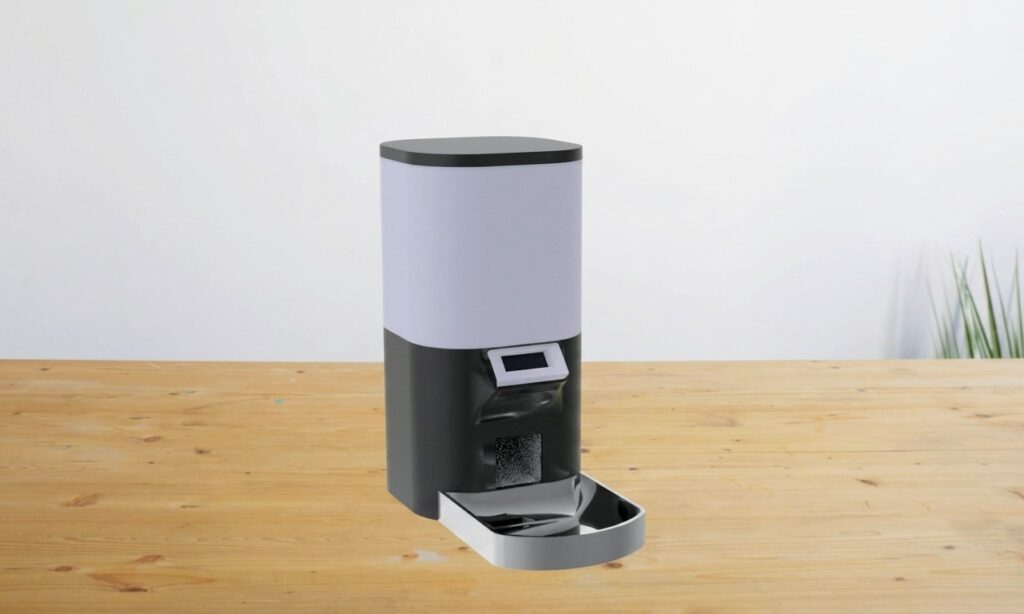
The enclosure was created to integrate:
- ESP32 controller
- OLED display
- DS3231 module
- Servo motor
- Food outlet mechanism
- Electrical wiring
- Food-storage section
- Access points for assembly and maintenance
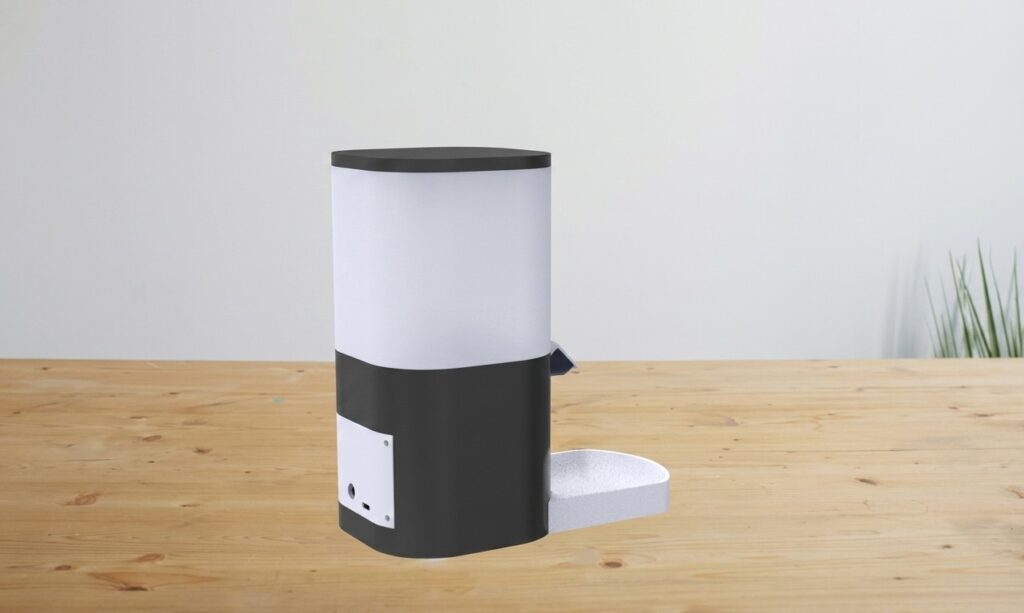
The objective was to create a more compact connected feeder with a clean external appearance and space for the Bluetooth-controlled electronic system.
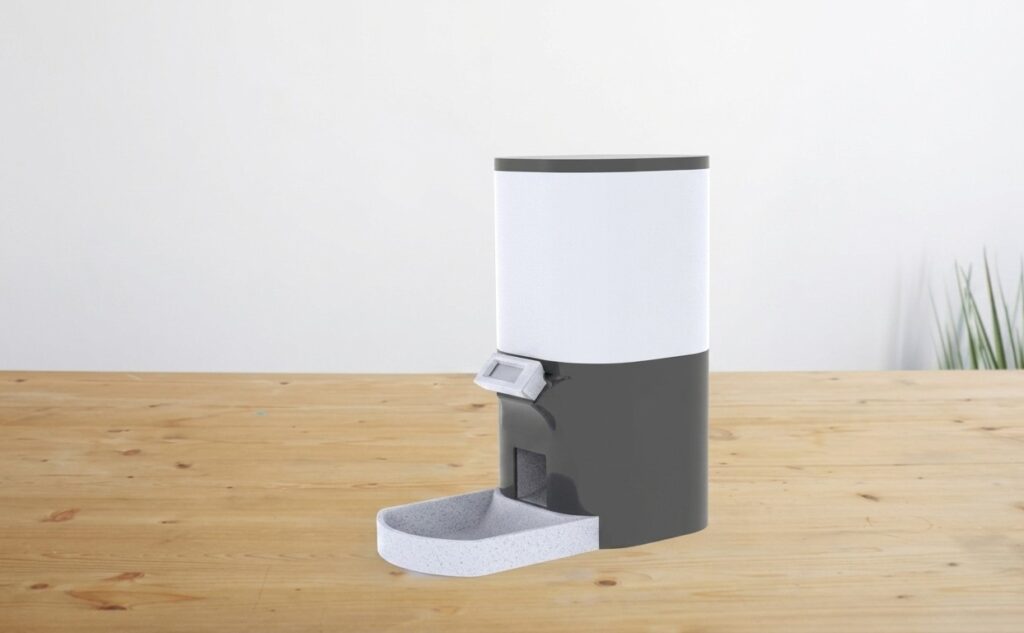
Want to print the enclosure for this smart Bluetooth pet feeder?
The STL files for this ESP32 pet feeder body are available as a digital download from our Etsy shop. This package includes printable enclosure files only. Electronics, ESP32 board, battery, OLED display, source code, circuit components and physical printed parts are not included in the STL-only listing.
3D Printing and Assembly
After completing the CAD model, the enclosure parts were prepared for additive manufacturing and produced using 3D printing.
The printing and assembly process included:
- Preparing the enclosure parts for printing
- Selecting suitable print orientation
- Printing the main body and supporting parts
- Cleaning the printed surfaces
- Checking the fit of electronic components
- Installing the servo and dispensing mechanism
- Mounting the OLED
- Positioning the ESP32 and RTC
- Routing the internal wires
- Completing the mechanical assembly
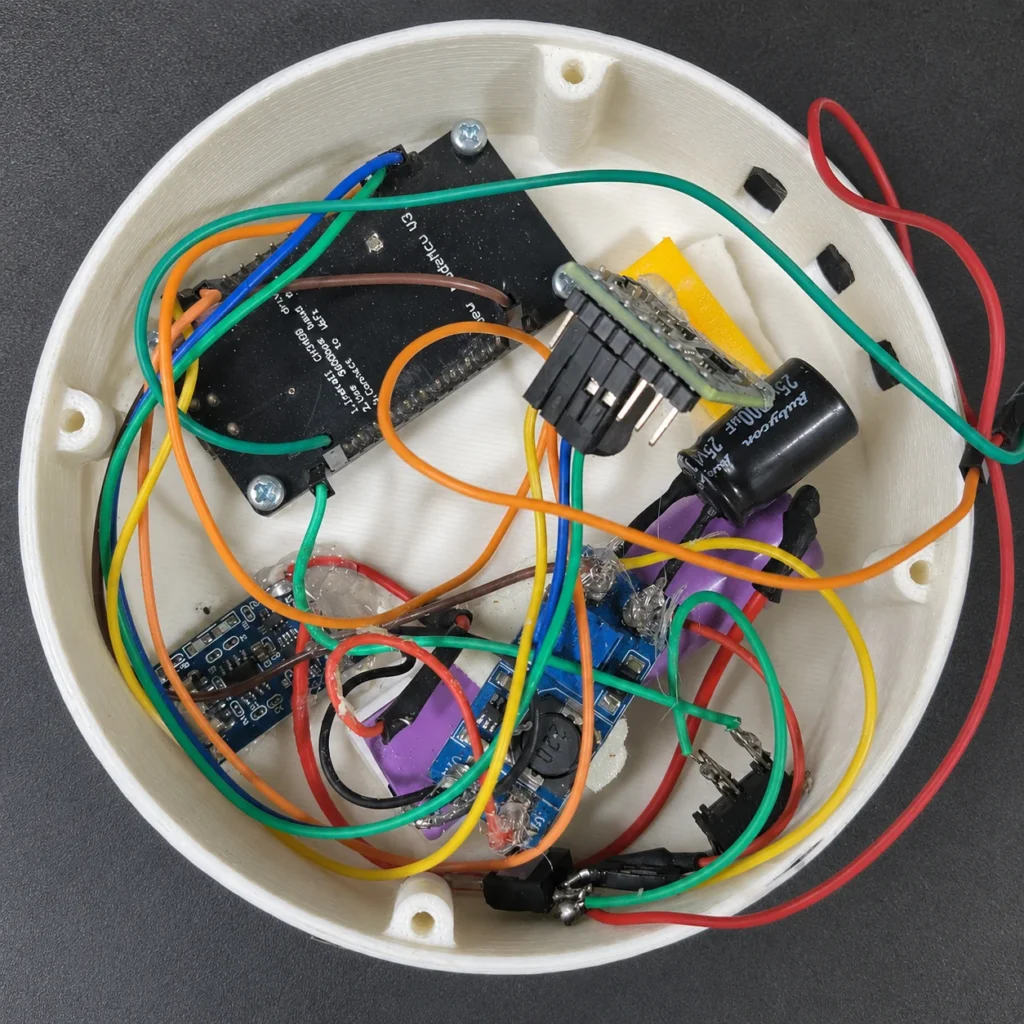
The design was tested as a functional prototype rather than only as a visual model.
Our 3D printing services support custom electronics enclosures, functional prototypes, mechanical parts and product-development models.
Gray-and-White Painted Finish
The completed enclosure was painted using a gray-and-white color combination.
The two-tone finish separates the major external sections visually and gives the feeder a cleaner product-style appearance than an unfinished printed prototype.
The finishing process may include:
- Surface preparation
- Light sanding
- Primer application
- Gray base or accent sections
- White body sections
- Drying between coats
- Final inspection
- Reassembly of electronic and mechanical parts
Testing the Pet Feeder
The following checks should be completed before regular use. Do not forget to check Boost converter output Voltages (5V).
Bluetooth Test
- Confirm that the device appears as
ESP32-PET-FEEDER. - Connect the app.
- Send the manual feed command.
- Confirm that response messages appear.
RTC Test
- Set the current time from the app.
- Compare the OLED time with the phone.
- Restart the controller.
- Confirm that the DS3231 continues showing the correct time.
Schedule Test
- Set a feeding time a few minutes ahead.
- Wait for the selected minute.
- Confirm that one automatic cycle occurs.
Servo Test
- Confirm the closed position prevents unwanted food flow.
- Confirm the open position releases food.
- Check that the mechanism returns completely.
- Listen for servo strain or mechanical obstruction.
OLED Test
- Confirm that the current-time screen appears.
- Confirm that the feed-time screen appears.
- Confirm that both screens alternate.
- Confirm that the animation appears during dispensing.
Food-Flow Test
Test the mechanism with the actual dry food intended for use. Different pellet sizes, shapes and surface textures can change the amount released during the same opening time.
Portion Control and Calibration
The Smart Bluetooth Pet Feeder controls the approximate food portion by changing how long the servo keeps the dispensing outlet open.
The updated firmware supports five portion levels:
| Portion level | Approximate opening duration |
|---|---|
| 1 | 2 seconds |
| 2 | 4 seconds |
| 3 | 6 seconds |
| 4 | 8 seconds |
| 5 | 10 seconds |
The firmware uses a base opening duration of approximately two seconds for each portion level.
For example:
Portion 1 = 1 × 2 seconds
Portion 3 = 3 × 2 seconds
Portion 5 = 5 × 2 seconds
The base duration is defined in the firmware by:
constexpr uint32_t PORTION_BASE_DURATION_MS = 2000UL;
The servo moves the dispensing mechanism from its closed position to its open position. It remains open for the calculated duration and then returns to the closed position.
Current Servo Positions
The current prototype uses approximately:
Open position: 0°
Closed position: 60°
These angles depend on the actual servo orientation, horn position and mechanical design of the dispensing outlet. They may need adjustment when the servo or enclosure mechanism is changed.
Portion Control Is Time Based
The current feeder does not weigh the food. Portion size is estimated using:
- Servo opening duration
- Servo opening angle
- Outlet dimensions
- Food-pellet size
- Food shape and surface texture
- Amount of food inside the container
- Mechanical resistance
- Battery and supply stability
Because these factors can affect food flow, the same portion setting may release slightly different amounts with different types of dry food.
The portion values should therefore be described as adjustable approximate portions rather than exact measured weights.
How to Calibrate the Portions
Use the actual dry food intended for the pet when calibrating the feeder.
- Fill the food container to its normal operating level.
- Place an empty bowl under the outlet.
- Send:
FEED=1
- Weigh or measure the released food.
- Repeat the same test at least five times.
- Calculate the average quantity released.
- Repeat the process for portion levels 2 to 5.
- Check whether the food flow remains consistent.
- Adjust the base duration or servo angles if required.
- Test again after making any firmware or mechanical adjustment.
A simple calibration record can be created:
| Portion level | Test 1 | Test 2 | Test 3 | Test 4 | Test 5 | Average |
|---|---|---|---|---|---|---|
| 1 | ||||||
| 2 | ||||||
| 3 | ||||||
| 4 | ||||||
| 5 |
Adjusting the Base Duration
When the feeder releases too little food, increase:
PORTION_BASE_DURATION_MS
For example:
constexpr uint32_t PORTION_BASE_DURATION_MS = 2500UL;
This changes each portion step to approximately 2.5 seconds.
When the feeder releases too much food, reduce the value.
Example:
constexpr uint32_t PORTION_BASE_DURATION_MS = 1500UL;
This changes each portion step to approximately 1.5 seconds.
After changing this value, test all five portion levels again.
Adjusting the Servo Angles
When the food outlet does not open fully, adjust the open angle.
When the outlet does not close completely, adjust the closed angle.
The correct values depend on the physical installation and should be confirmed without forcing the servo against the mechanical limit.
A servo that continuously pushes against the enclosure can:
- Draw excessive current
- Produce noise
- Heat up
- Reduce battery operating time
- Damage the servo gears
- Cause ESP32 resets
Power Stability During Larger Portions
Higher portion levels keep the servo active for a longer time. This can increase power consumption and place additional load on the battery and boost converter.
The project uses:
- Two parallel 18650 battery cells
- TP4056 charging and protection board
- XL6019 boost converter
- 4700 µF capacitor
The capacitor helps reduce short voltage drops during servo movement. However, the system should still be tested at portion level 5 to confirm that:
- The ESP32 does not restart
- The OLED does not flicker
- Bluetooth remains connected
- The servo does not stall
- The boost converter does not overheat
- The outlet returns completely to the closed position
Improving Portion Accuracy
For more precise food measurement, a future version can use:
- Load cell
- HX711 amplifier
- Stepper-motor dispenser
- Rotary measuring chamber
- Food-flow sensor
- Closed-loop weight feedback
A load-cell system could stop dispensing after the selected food weight has been measured. This would provide more accurate control than the current time-based method.
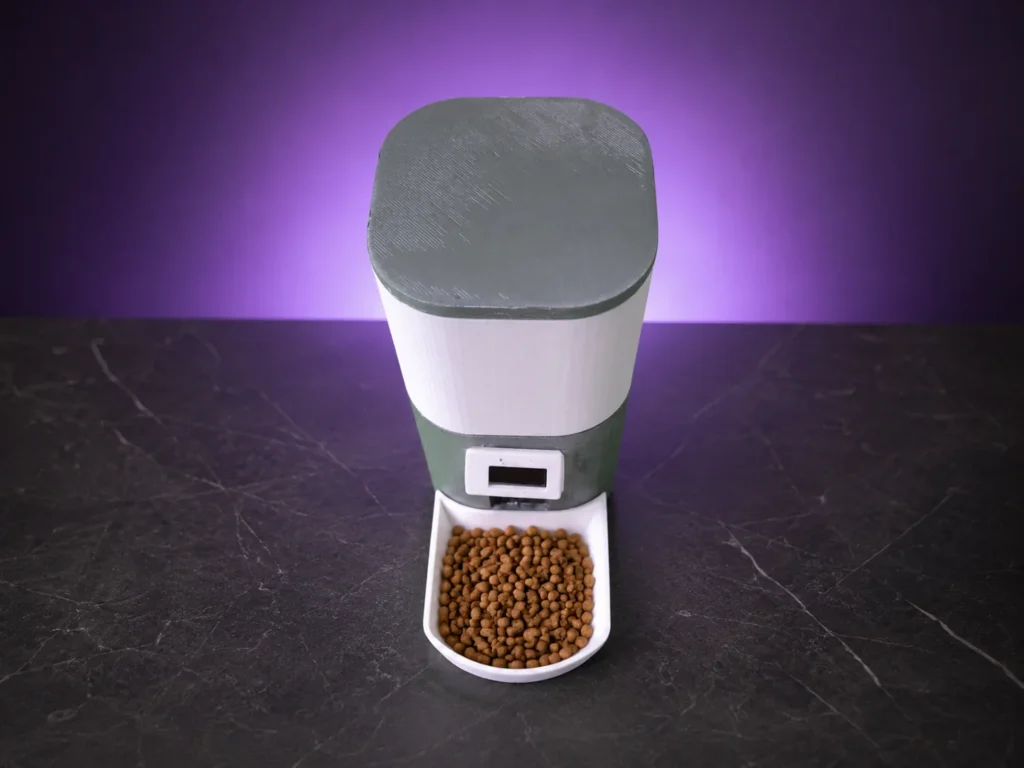
Battery and Power Testing
- Fully charge the battery pack before the first complete test.
- Confirm the voltage of both cells before connecting them in parallel.
- Measure the TP4056 output.
- Confirm the XL6019 input and output voltage.
- Verify the converter output before connecting the ESP32.
- Activate the servo repeatedly and check for ESP32 resets.
- Check whether the OLED flickers during motor operation.
- Confirm that Bluetooth remains connected during feeding.
- Test scheduled feeding while the feeder operates only from batteries.
- Record the operating runtime between charges.
- Check the temperature of the cells, charging module and boost converter.
- Verify that the servo returns fully to its closed position at a lower battery charge level.
charging test:
- Confirm charging-status indication.
- Confirm full-charge indication.
- Disconnect charging power and confirm normal battery operation.
- Verify that the feeder can restart correctly after charging.
Current Prototype Configuration
The completed prototype combines:
- ESP32 embedded control
- Custom Android app
- Bluetooth Classic SPP connection
- Device scan and reconnect functions
- Manual app-controlled feeding
- RTC-based automatic feeding
- Multiple schedule interface
- Portion-selection interface
- Feeding statistics and activity history
- OLED status display
- Servo-controlled food outlet
- Rechargeable dual-18650 power system
- Custom 3D-printed mechanical enclosure
The system is designed for direct local control. The smartphone and pet feeder must remain within Bluetooth range when sending commands or synchronizing information.
Automatic schedules stored in the ESP32 can continue operating without an active smartphone connection.
Possible Future Improvements
The project can be expanded with:
- BLE communication
- Wi-Fi and cloud control
- Local-server integration
- Wi-Fi version
- Food-level detection
- Low-food notification
- Load-cell portion measurement
- Motor-jam detection
- Battery-voltage monitoring
- Battery percentage in the app
- Low-battery warning
- Buzzer or voice message
- Camera monitoring
- Pet-presence detection
- RFID pet identification
- Multiple pet profiles
- Custom PCB
- OTA firmware updates
These options can convert the current Bluetooth prototype into a more advanced consumer pet-care product.
Arduino Expert Bluetooth Pet Feeder vs Offline Arduino Pet Feeder
| Feature | ESP32 Bluetooth Feeder | Arduino Offline Feeder |
| Main controller | ESP32 | Arduino Uno |
| User input | Custom Mobile app | Keypad |
| Display | 128×32 OLED | 16×2 LCD |
| Wireless control | Bluetooth | No |
| Manual app feeding | Yes | No |
| RTC module | DS3231 | DS3231 |
| Enclosure | New gray-and-white design | Original separate design |
| Internet required | No | No |
| Main use | Smartphone-controlled local feeder | Standalone keypad-controlled feeder |
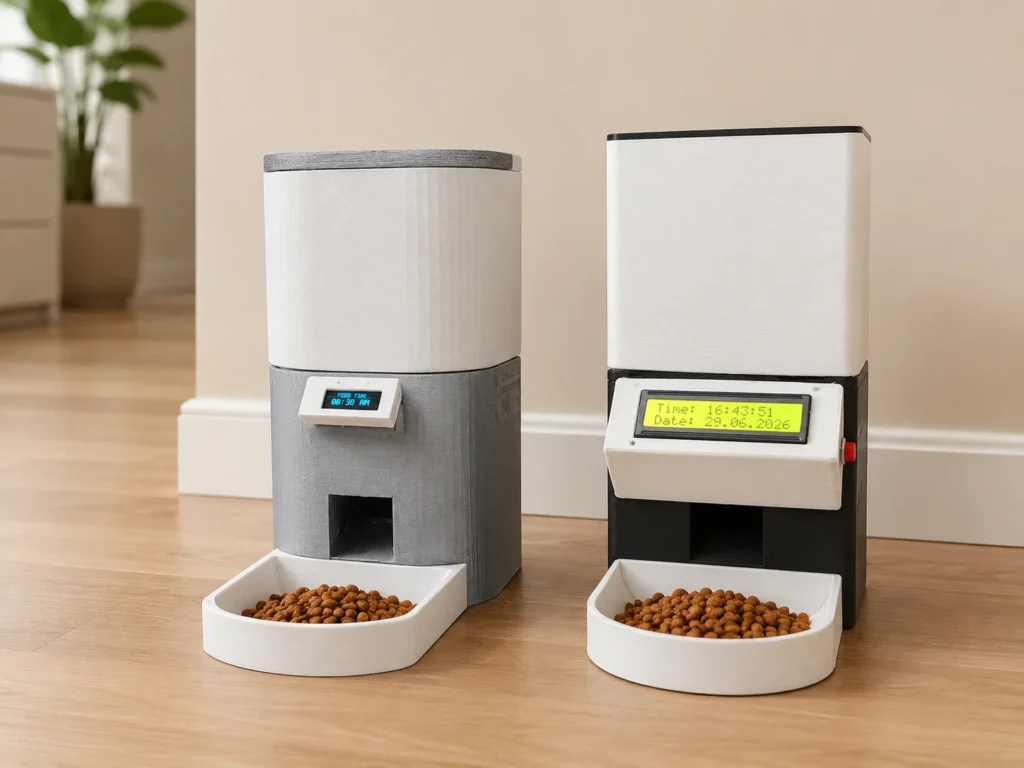
Both designs use an RTC and servo-controlled mechanism, but their controllers, user interfaces, enclosures and operating workflows are different.
Custom Bluetooth and Smart Pet Feeder Development
This project demonstrates the combination of embedded programming, wireless communication, App Development, mechanical design, 3D printing and product finishing in one functional prototype.
Arduino Expert can develop customized pet-feeding systems with features such as:
- ESP32 control
- Bluetooth or BLE
- Custom Wi-Fi and mobile apps
- Automatic schedules
- Custom dispensing mechanisms
- Portion control
- Food-level monitoring
- Custom PCBs
- Battery systems
- OLED or touchscreen interfaces
- Camera integration
- Cloud dashboards
- Rechargeable lithium-ion battery integration
- Charging-circuit design Battery protection
- Custom 3D-designed enclosures
- Prototype assembly and testing
Explore our complete custom pet feeder product development services for app-controlled, offline, Bluetooth, BLE, Wi-Fi and IoT pet-feeding products.
For a custom project quotation, contact Arduino Expert.
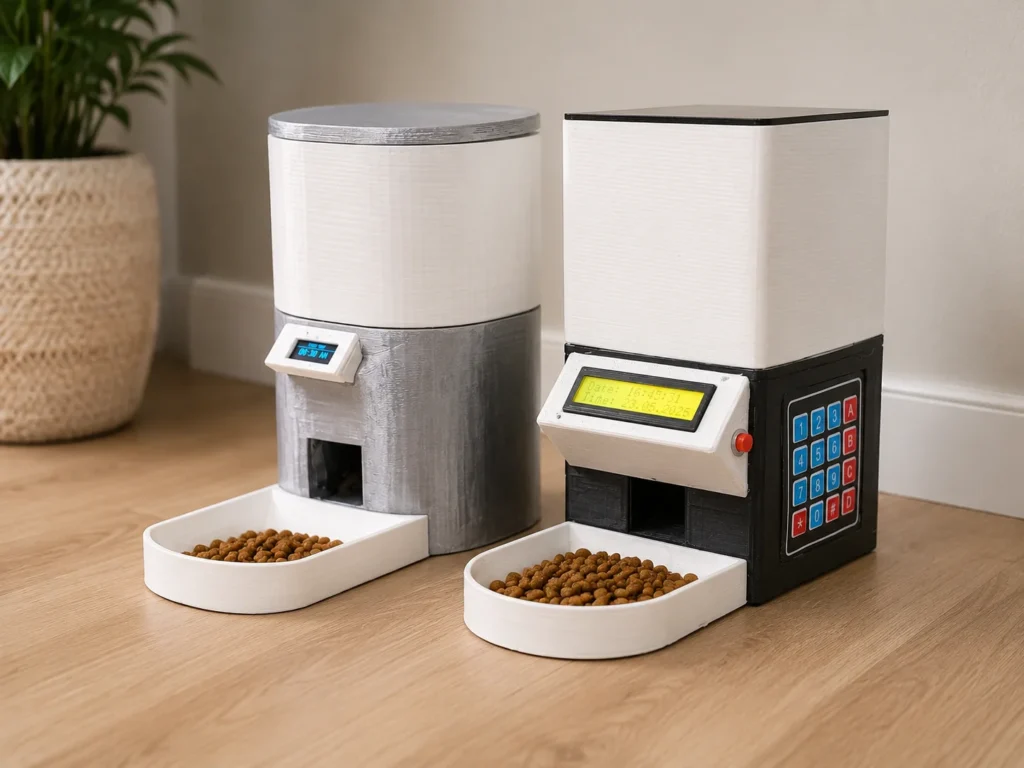
Related Projects and Services
- Arduino Automatic Pet Feeder with Keypad and LCD
- Custom Pet Feeder Product Development
- ESP32 Project Development Services
- Mobile App Development for IoT Devices
- Professional 3D Printing Services
- Product Design and Development Services
- ESP32 IoT Aquarium Control Project
Need a Custom ESP32 Bluetooth Pet Feeder?
We develop custom automatic and smart pet feeders with Bluetooth, BLE, Wi-Fi, mobile app control, RTC scheduling, OLED interfaces, sensor integration, PCB design and professionally designed enclosures.
Whether you need source code, a circuit, CAD/STL files, custom mobile app, a Functional Prototype or complete product-development support, Arduino Expert can develop the system according to your requirements. we can aslo ship the Fully Functional Pet to your doorstep anywhere in the world.
Conclusion
The Smart Bluetooth Pet Feeder is a complete connected pet-care prototype that combines custom hardware, embedded firmware, mechanical design and a dedicated Android application.
The app allows the user to connect to the ESP32 through Bluetooth Classic, activate manual feeding, configure feeding schedules, select portion settings and review feeding activity. The DS3231 RTC supports time-based operation, while the OLED gives local visual feedback directly on the feeder.
The rechargeable power system uses two parallel 18650 cells, a TP4056 charging module, an XL6019 boost converter and a 4700 µF capacitor. This allows portable operation while helping maintain a stable supply during servo movement.
The custom 3D-designed and 3D-printed gray-and-white enclosure integrates the electronics, food container, OLED and dispensing mechanism into one functional product prototype.
Unlike a basic Arduino demonstration or a generic Bluetooth-terminal project, this system includes a purpose-built application and a complete product-oriented user experience.
The current version uses direct Bluetooth Classic communication. A BLE version can be developed for lower-power and more structured mobile communication, while a separate local-server pet-feeder version is also being developed for advanced network-based control and data management.
Frequently Asked Questions (FAQs)
Is this an ESP32 Bluetooth or BLE pet feeder?
The current firmware uses ESP32 Bluetooth Classic Serial communication through the BluetoothSerial library. However BLE can be also used with BLE Code.
Does the pet feeder need Wi-Fi?
No. The current version uses a direct local Bluetooth connection and does not require Wi-Fi, a cloud server or an internet account.
Does this pet feeder have its own mobile app?
Yes. A custom Android application was developed by Arduino Expert specifically for the Smart Bluetooth Pet Feeder.
Does the app require internet access?
No. The current version communicates directly with the ESP32 through Bluetooth Classic and does not require internet access or a cloud account.
Can the mobile app change the DS3231 time?
Yes. our custom app can change the DS3231 time.
Can the app dispense food immediately
Yes. The Feed Now button sends a manual feeding command to the feeder.
Can this project be converted to BLE?
Yes. The communication layer can be redesigned using BLE services and characteristics instead of Bluetooth Classic Serial.
Can multiple feeding schedules be configured?
Yes. The firmware supports up to eight daily feeding schedules. Each schedule can have its own time, portion level and enabled or disabled status.
Can the user select a portion size?
The app includes a portion-size control. The actual amount released depends on how the firmware translates the selected value into servo movement or dispensing duration.
Does the app show feeding history?
Yes. The Stats screen is designed to show daily feeding totals, the latest feeding time and feeding-history records.
Can the app reconnect to the feeder?
Yes. The Device screen includes scan and reconnect controls for Bluetooth Classic devices.
Is the current app based on BLE? Can we use BLE?
No. The current application uses Bluetooth Classic SPP. But BLE can be easily used, for BLE no any Hardware changes are required. We are working on A BLE version also. It will be available soon.
Can the feeder work without the custom mobile app?
Yes. Basic functions can be controlled through a compatible Android Bluetooth Classic serial terminal application. The user can send commands for manual feeding, RTC adjustment and feeding-time configuration. The dedicated app is recommended for the complete user interface and advanced features.
What does the OLED display show?
The OLED alternates between the current RTC time and the selected feeding time. It displays an animated falling-dot effect while food is being dispensed.
What controls the food outlet?
A servo motor controls the opening and closing movement of the dispensing mechanism.
Is the enclosure the same as the previous Arduino pet feeder?
No. This feeder uses a newly designed enclosure with a different structure and visual appearance. The finished prototype has a gray-and-white painted color scheme.
Is the feeding portion measured by weight?
No. The current prototype uses servo position and opening duration to control an approximate amount. A load cell can be added for weight-based portion measurement.
Will you Provide Future Updates to the App and ESP32 Code for Pet Feeder?
Yes, currently we are working on updates and will continue to provide in future.
Can I get the source code, circuit, CAD files, Custom App or a ready made complete Pet feeder?
Yes, we can provide everything, Project deliverables can be prepared according to the required scope, including firmware, circuit documentation, CAD/STL files, printed enclosure, app integration or a complete working prototype. You can download the our STL files from our Etsy shop.